Update Help Scout When You Change Email Providers
If you are using shared email addresses from your own domain (e.g. support@yourdomain.com) with Help Scout and your organization changes email providers, you'll need to set up forwarding at your new email provider and may need to update your outgoing email settings in Help Scout.
This article covers the changes you'll want to check when you switch to a new email provider. You may need to check with your email administrator or IT team for help with these steps.
Note: If you are only using the Help Scout email address directly (e.g. support@company.helpscoutapp.com), you do not need to make any changes when switching email providers.
In this article
Set Up Forwarding at the New Provider
If you are using a domain email address with Help Scout (e.g. support@yourdomain.com), your email was set up to forward from your previous email provider when you set up Help Scout. After you switch email providers, you'll need to set up that forwarding at your new email provider so that emails continue to make it to Help Scout.
Find Your Help Scout Inbox Address
Head to Settings (gear icon) > Inboxes > [Choose Your Inbox] in Help Scout. If you have multiple Inboxes, you'll need to do this for each one.
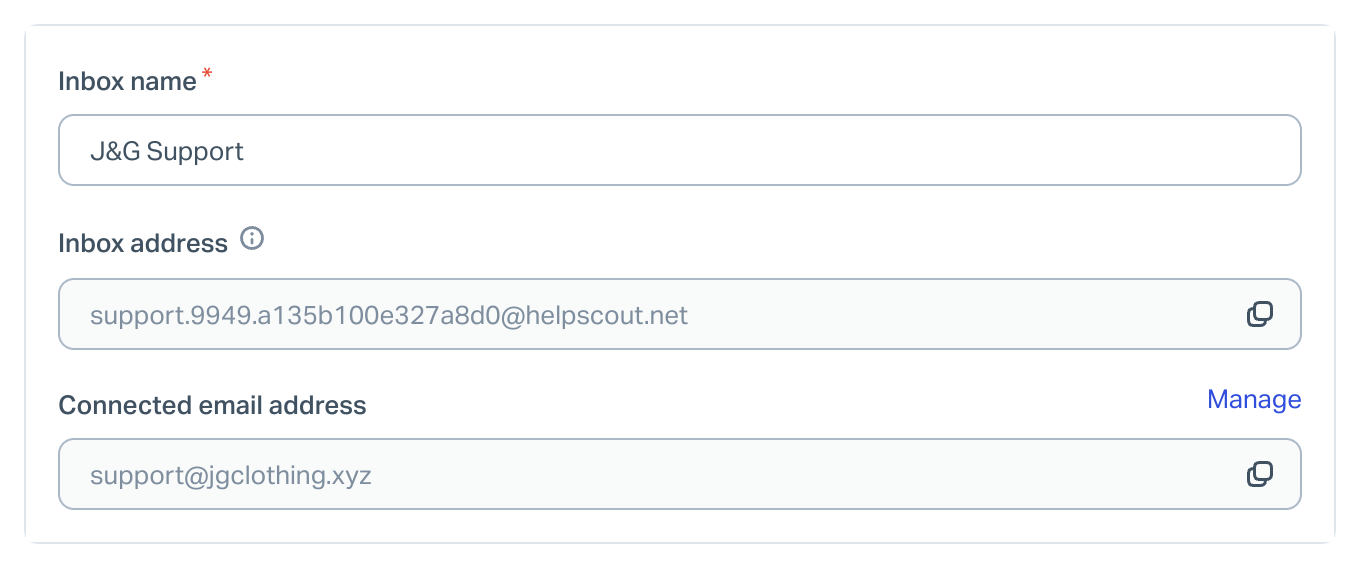
Find the Inbox Address on the Edit Inbox tab. This is the address that you will forward your domain email to at your new provider.
Forward Your Email to Help Scout
Now head to your mailbox at your email provider for the Connected Email address and set up forwarding from that mailbox to your Help Scout Inbox Address.
Forward Your Shared Email in to Help Scout has guides for many popular providers — just find your new provider there and follow the instructions to set up forwarding.
Note: You may need help from your email administrator or IT team to make the changes needed at your new provider. Just send them this article if you're not sure what to do, and they can take it from there.
Check Your Outgoing Email Settings
Head to Settings (gear icon) > Inboxes > [Choose Your Inbox] > Outgoing Email to view your settings. If Use Help Scout is the current setting, you do not need to make any changes.
If it is set on Use Custom SMTP, you will need to update that to connect to your new email provider, or change to using Help Scout servers instead.

If your new email provider is Google Workspace, head over to Use Google OAuth to Send From Help Scout for the steps to connect.
If your new email provider is Microsoft 365 Outlook, visit Use Microsoft 365 Outlook to Send From Help Scout for the steps to connect.
If your new email provider is any other provider, you can check Use SMTP to Send From Help Scout for the steps to set that up.
Check Any Aliases or Additional Forwards
Any email that was coming into your Help Scout Inbox before you changed providers was being forwarded in to Help Scout — and just like with your connected Inbox address, you'll need to set those up to forward to Help Scout at your new provider as well.
In Help Scout, head to Settings (gear icon) > Inboxes > [Choose Your Inbox] and scroll down to the Aliases section on that page. Any email addresses you see there that should be automatically forwarding to Help Scout will need to be set up at your new provider.
Check the guides at Forward Your Shared Email in to Help Scout for help, or reach out to your email administrator or IT team if you're not sure how to get to those.