Get Started with Automatic Translations
Support customers in any language — right inside Help Scout. When Automatic Translations is enabled on a Beacon, customer messages are automatically translated into your team's language, and your replies are translated back into theirs. The whole exchange happens seamlessly, with no extra steps for you or your customer.
In this article
| Permissions & Plans Access | |
|---|---|
| Plans With Access | Pro |
| User Roles and Permissions | All users with the Messages & Beacon: Create, edit, delete permission can enable |
Enable Automatic Translations for Chat
- 1
-
Click on the Contact tab in the left navigation menu.
- 2
-
Turn the Chat toggle on.

- 3
-
Scroll down to find the Chat settings section and turn the Translate messages toggle on.
Check out Manage Beacon Contact Settings: Chat Options for more about these selections.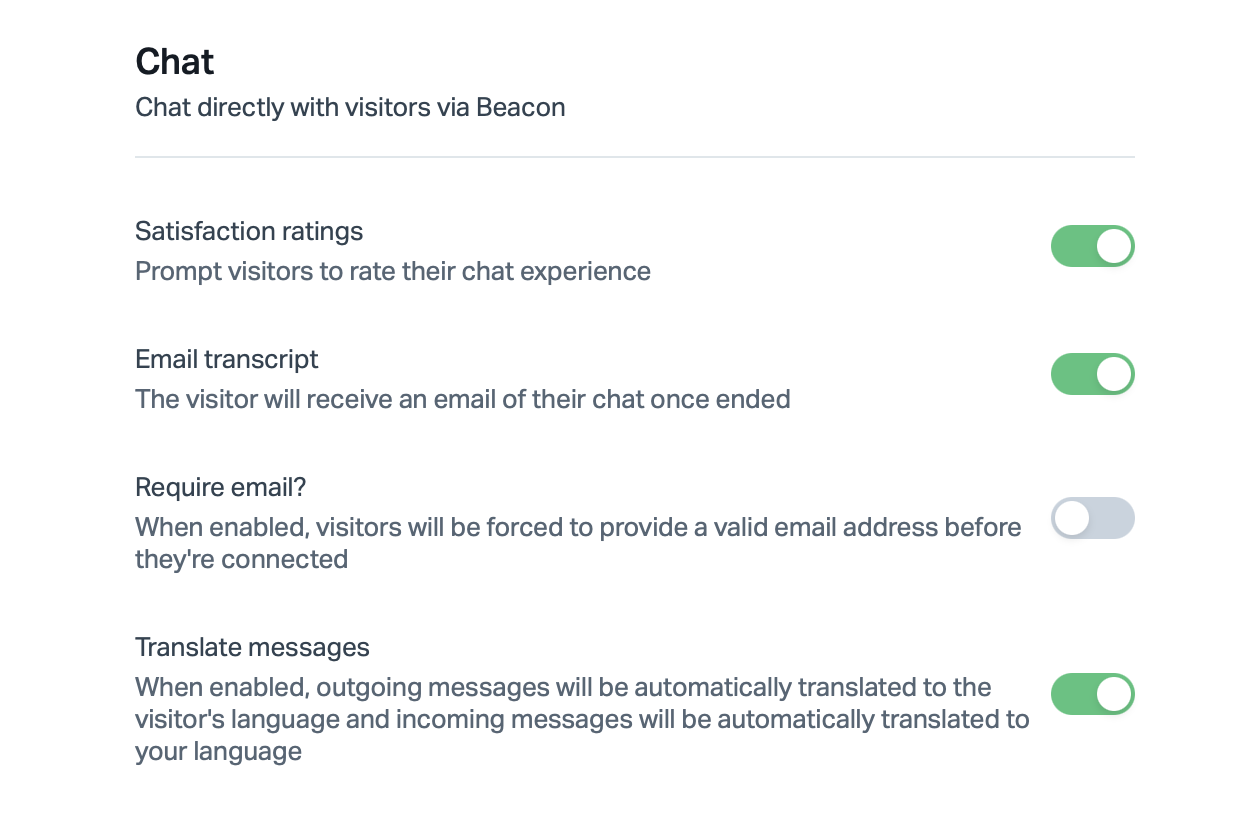
- 4
-
Scroll down to the bottom of that page and click Save to commit that change.

That's it — incoming chats will start to be automatically translated! ✨
Customize Labels
Two translation-related labels can be customized in Beacon's Customize settings:
- Chat translation notice — the message displayed in the chat widget when translation is active

- Translation notice for the email transcript — the message included when the chat transcript is emailed to the customer after the conversation

For more on these settings, check out Customize Basic and Advanced Beacon Settings.
The User Experience
Language preference
Your preferred language is detected automatically from your browser's language settings — there's nothing to configure in Help Scout. If your browser is set to Spanish, for example, a customer's English message will appear translated into Spanish in the conversation.
If your browser reports multiple languages (for example, both es-ES and en ) and a customer writes in one of those languages, Help Scout will display the original message without translation.
Reading translated messages
When a customer's message has been translated, a Translated from [Language] label appears below it.

You can click View in Original Language at any time to see the untranslated source text, and View in Translated Language to return to the translated view.
Replying
When you reply, your message is automatically translated into the customer's language before it's delivered. You write in your language; they receive it in theirs.

Saved replies will work the same way — they're translated into the customer's language before delivery, just like anything you type manually.
If a translation request fails, the original untranslated message is displayed and a notice is shown. Message delivery is never blocked by a translation failure — the conversation can continue normally regardless.
The Beacon Visitor Experience
From the customer's perspective, everything happens automatically. They write in their language; they receive your replies in their language. There's no opt-in or language selection required on their end.
A translation notice is displayed within Beacon to let them know their messages are being translated.
Check out the Help Scout AI Transparency Hub for questions about our AI policies.