Auto-Forward From Microsoft 365 Outlook to Help Scout
Microsoft 365 email hosting uses Exchange Online to provide professional email with your own custom domain. This article will walk you through forwarding email from Outlook for Microsoft 365 to your Help Scout Inbox.
Choose Your Outlook
-
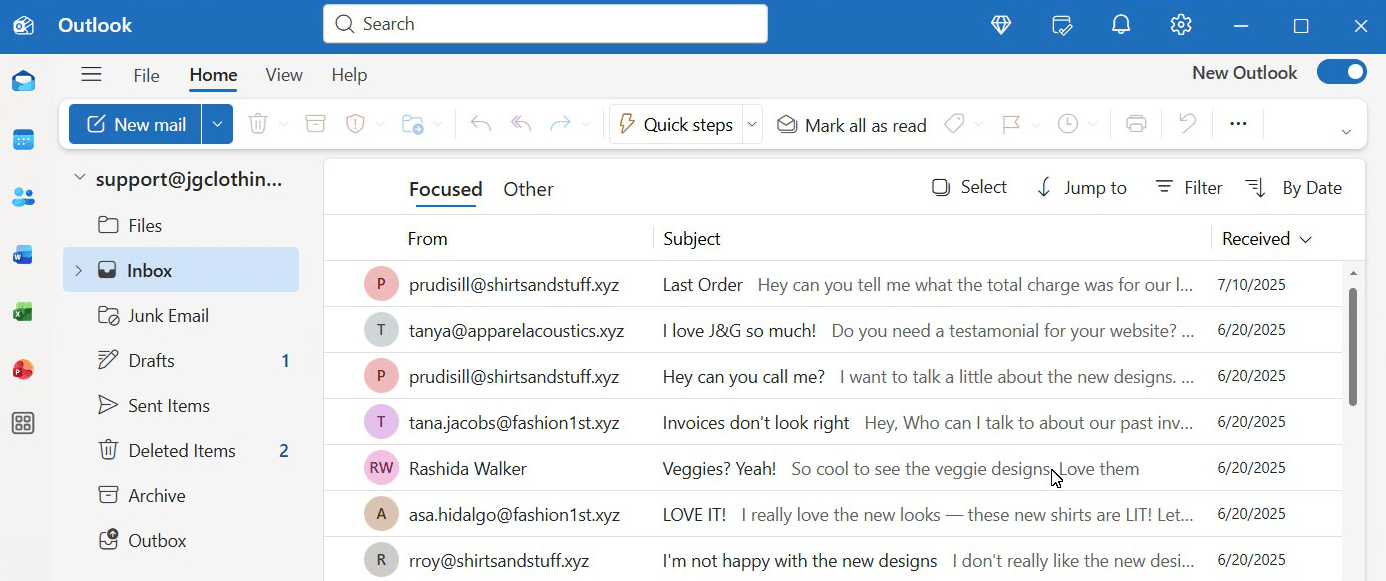
Do you have Outlook installed on your computer that looks like this? Awesome, you've got the new Outlook, and it is the easiest way to set up forwarding! Head down the page to New Outlook to get going.
-
Do you have the credentials to log in to Outlook on the web at https://outlook.com? It's just as easy really, just head down to Outlook on the web to see those instructions.
-
If you have an older Outlook installation, we highly recommend switching to the new Outlook or signing in on the web — it's just so much easier. If that old Outlook is what you're stuck with though, hop over to Use an Outlook Redirect Rule to Redirect Microsoft 365 Email for the guide to set that up.
Note: Once you turn on forwarding in Outlook, stop managing email there. Do not reply to or modify any messages in Outlook — doing so breaks the link to the Help Scout conversation. Any replies or updates made in Outlook will not appear in Help Scout.
Before You Start
You will need to have these things available to you before you start:
Ready? Let's Go!
New Outlook
-
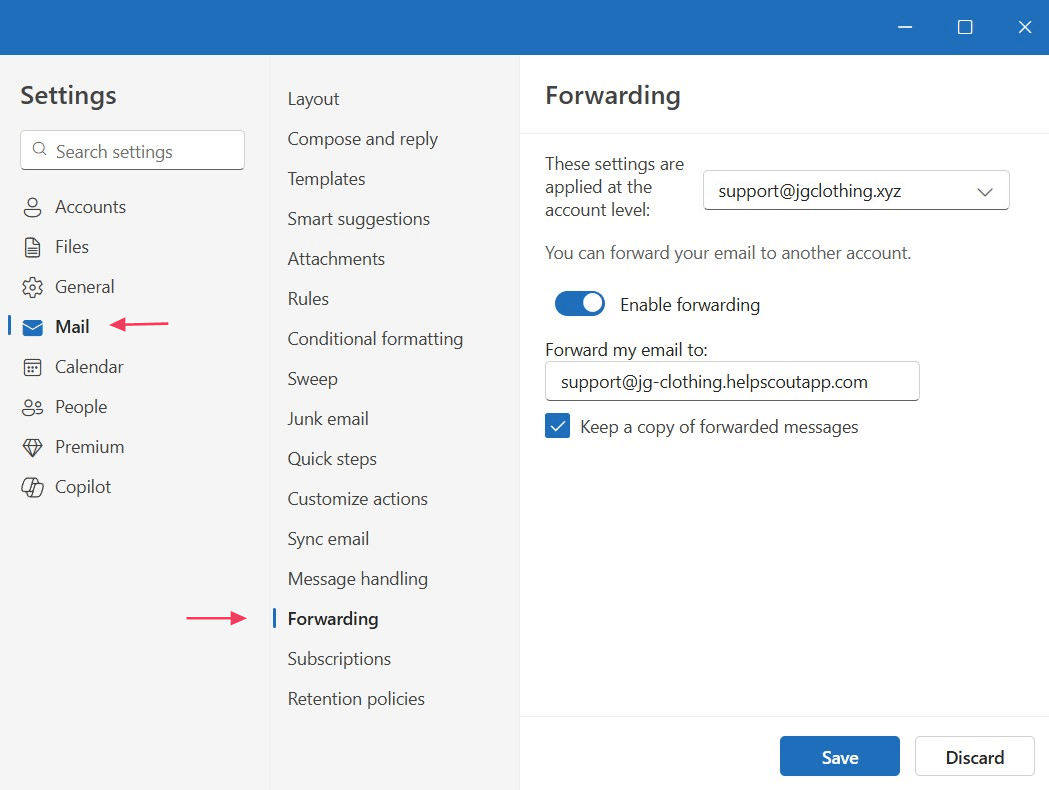
Open Outlook, and click the gear icon in the top right corner to open settings.

-
Choose Mail, then Forwarding. Choose the mailbox to forward and click Enable forwarding. Type or paste in your Help Scout Inbox address.
We recommend also checking Keep a copy of forwarded messages as an archive.
-
Send a test email to your Microsoft 365 mailbox address and verify that it appears in your Help Scout Inbox.
Next steps: Set up DKIM to allow Help Scout servers to send email on your behalf, or set up Custom SMTP to have your email sent from Microsoft 365's servers.
🚨 Microsoft 365 blocks automatic forwarding by default. If you see bounce messages in your Microsoft 365 inbox and the emails aren’t appearing in Help Scout, contact your Microsoft 365 administrator. They will need to enable forwarding for your address.
Point them to Enable External Forwarding in Microsoft 365 for the steps they need to take to allow your email to forward to Help Scout.
Outlook on the web
-
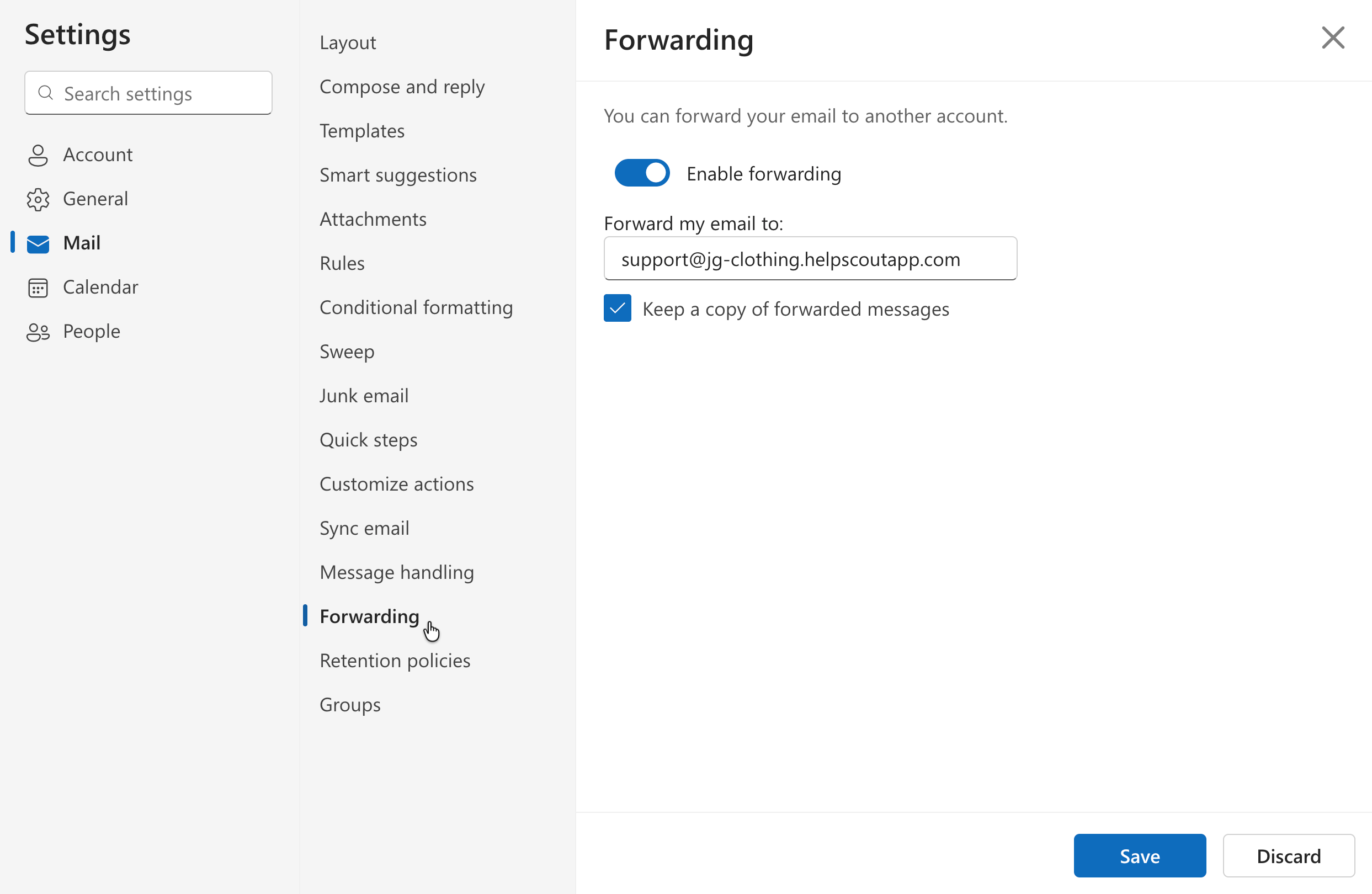
Log in to https://outlook.com with your Microsoft 365 email address and password. Click the gear icon in the top menu to open Settings.

-
Choose Mail, then Forwarding. Click Enable forwarding and type or paste in your Help Scout Inbox address. We recommend also checking Keep a copy of forwarded messages as an archive.
Click Save at the bottom of this screen then close the menu by clicking the x in the top right corner.
-
Send a test email to your Microsoft 365 mailbox address and verify that it appears in your Help Scout Inbox.
Next steps: Set up DKIM to allow Help Scout servers to send email on your behalf, or set up Custom SMTP to have your email sent from Microsoft 365's servers.
🚨 Microsoft 365 blocks automatic forwarding by default. If you see bounce messages in your Microsoft 365 inbox and the emails aren’t appearing in Help Scout, contact your Microsoft 365 administrator. They will need to enable forwarding for your address.
Point them to Enable External Forwarding in Microsoft 365 for the steps they need to take to allow your email to forward to Help Scout.
What to Check if You Don't See Emails in Help Scout
-
Walk through the steps above again just to ensure that forwarding has been set up.
-
Check your mailbox at Microsoft 365. If automatic forwarding is blocked for your address at Microsoft 365 you'll see bounce emails there. Reach out to your Microsoft 365 administrator and send them to Enable External Forwarding in Microsoft 365 if they need help allowing your mailbox to automatically forward.