Use Microsoft 365 Outlook OAuth to Send From Help Scout
If you are using your own email address with Help Scout, we send email on your behalf via our own Help Scout mail servers by default.
If your custom email address is a full Microsoft 365 Outlook user mailbox, you may choose to configure Help Scout to send your email from Microsoft's servers instead, using OAuth.
If you're using Google Workspace, it's just a tiny bit different. Head over to Use Google OAuth to Send From Help Scout for the steps there.
Note: If you are using your Help Scout email address directly — e.g. support@jg-clothing.helpscoutapp.com — you cannot configure OAuth to send from that address. This is only an option for Microsoft 365 Outlook or Google Workspace based accounts.
In this article
Reasons to Use OAuth
-
Email sent using Microsoft servers, rather than Help Scout servers, may have better deliverability
Email sent from Help Scout servers is exactly that — the emails are being sent from our servers, and not from Microsoft servers. Email security programs check to see where your emails are coming from, and this is something they will take note of. While using Help Scout servers alone will not hurt your chances for your email to get through, it is one factor that some spam blockers will consider when evaluating your email.
-
Save a copy of all sent emails in your Outlook Sent Items
Help Scout will connect to Microsoft 365 Outlook to hand over the email each time you send one, and Microsoft will save a copy of that sent email in your Outlook Sent Items for that account.
One-Time Admin Setup
Before anyone can connect an Outlook account, a Microsoft 365 Administrator needs to update one setting in the Entra admin center. This is a one-time setup for the organization, not something each user needs to repeat.
Note: Send this section to your Microsoft 365 Administrator if you don't have admin access yourself.
-
Head to the Entra admin center and search for Admin consent settings (or use this direct link: https://entra.microsoft.com/#view/Microsoft_AAD_IAM/ConsentPoliciesAdminConsentSettingsBlade?Microsoft_AAD_IAM_legacyAADRedirect=true).
-
Turn on Users can request admin consent to apps they are unable to consent to.
-
Under Who can review admin consent requests, click Add users, select your user, then click Select.
-
Set any remaining settings as you prefer, then click Save at the top of the screen.
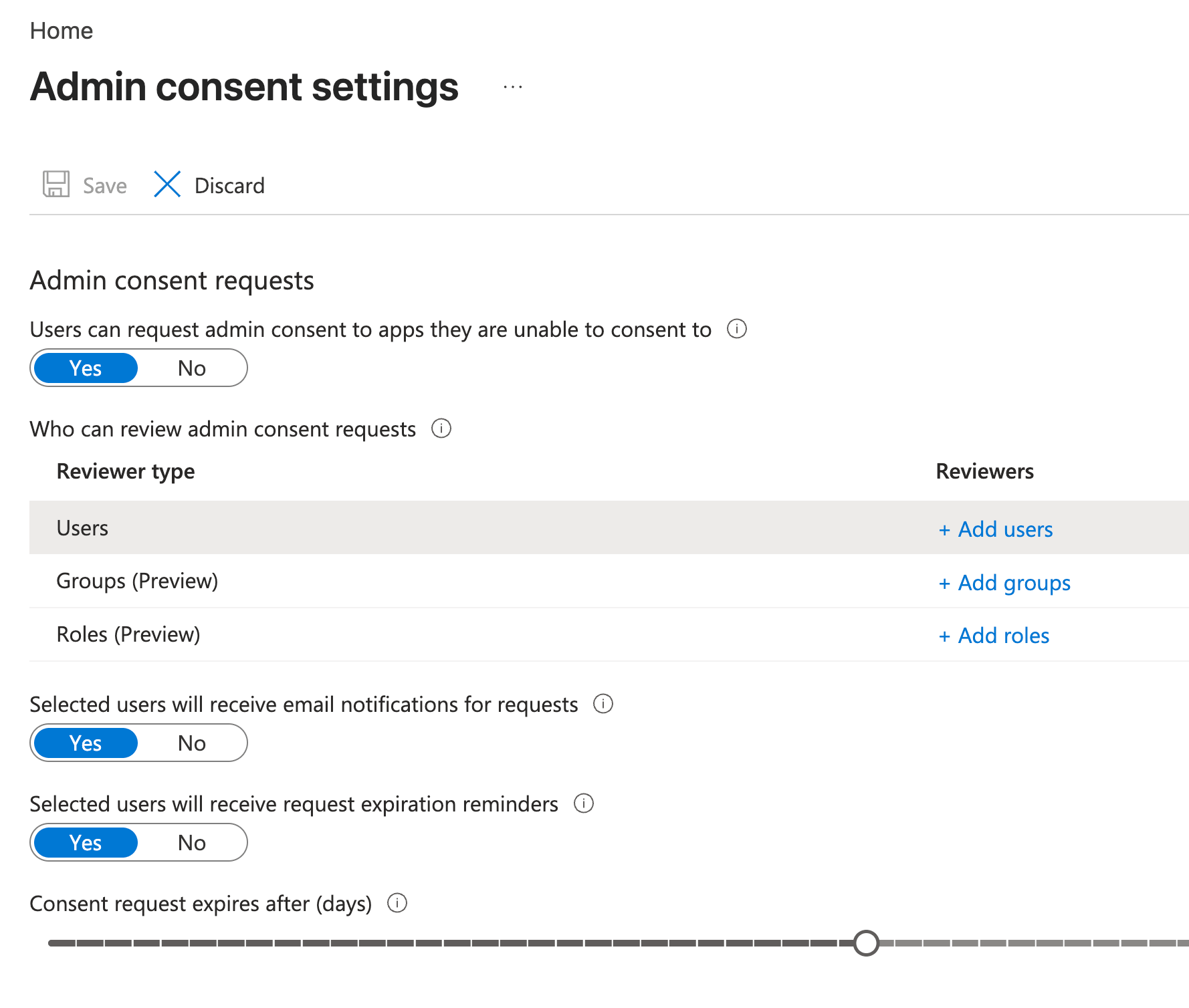
Once this is saved, any user in your organization can request approval to connect Help Scout to their Microsoft 365 Outlook account, as covered in the next section.
Connect to Send With Microsoft 365 Outlook
This is a two-person process: you'll start the connection, your Microsoft 365 Administrator will approve it, then you'll finish connecting. Follow the steps in order — you and your admin will each handle different steps.
Note: If you're a Microsoft 365 Administrator yourself, or already have permission to add apps, you will be able to connect at step 2 without having to ask for approval.
-
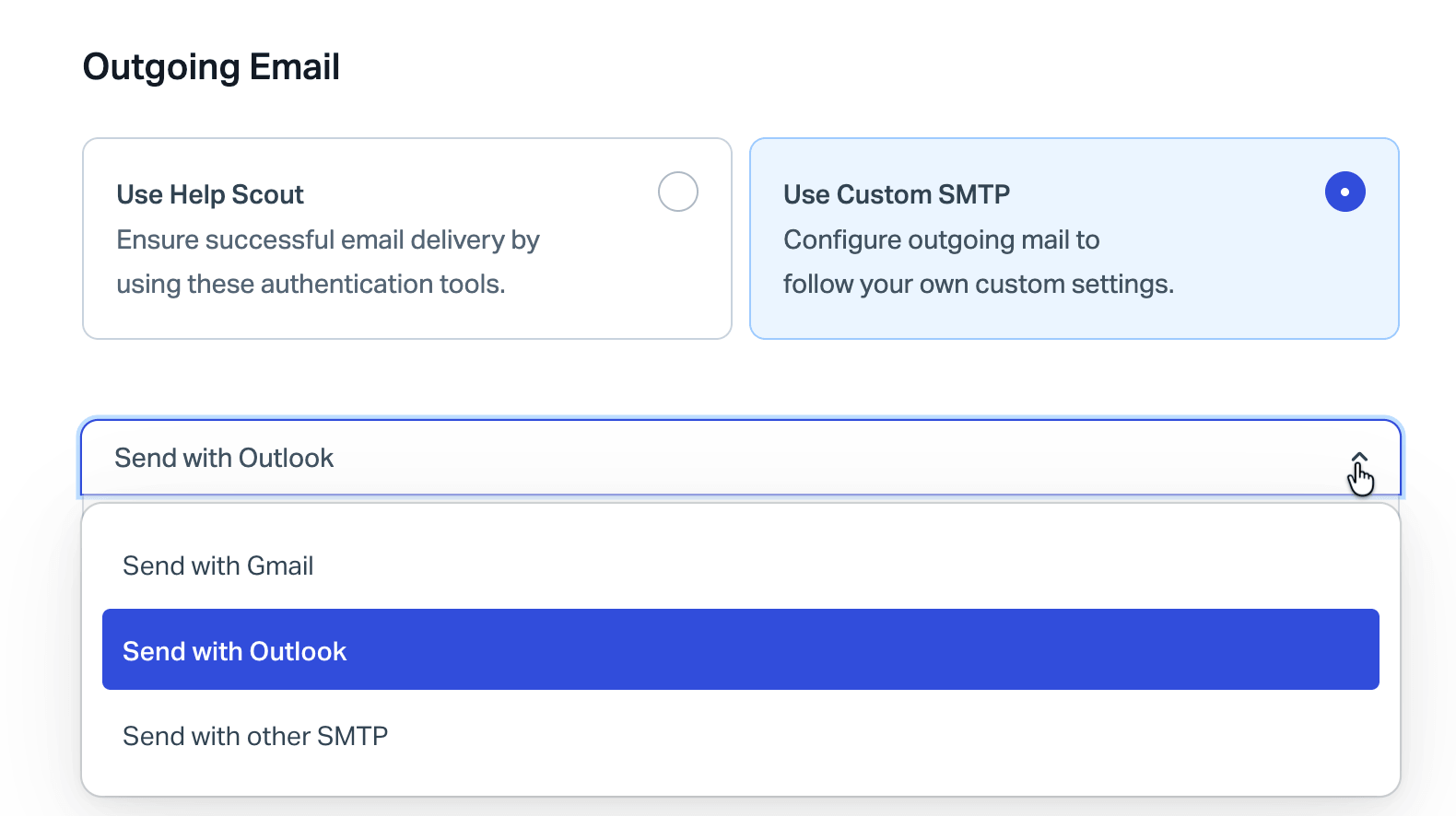
(You) Head to Settings (gear icon) > Inboxes > [Choose Your Inbox] > Outgoing Email. Select Use custom SMTP, choose Send with Outlook from the dropdown, then click Sign in with Outlook.
-
(You) Sign in to your Microsoft 365 Outlook account. On the Approval required screen, enter a reason in the Enter justification for requesting this app field — for example, "Sending email using Help Scout" — then click Request approval. Click Back to app on the Request sent screen.
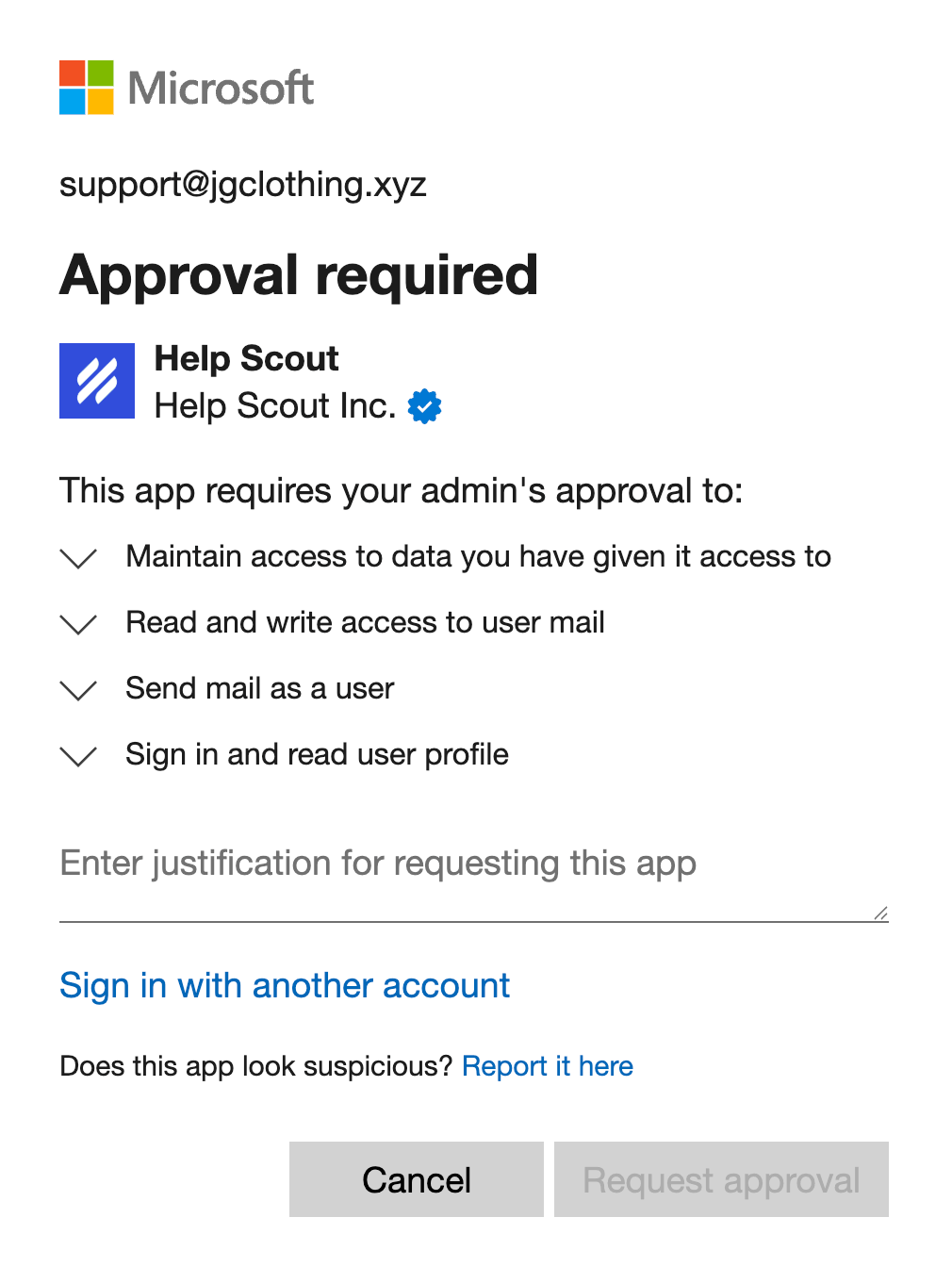
When you land back in Help Scout you will see an error that says "User declined to consent to access the app." This is expected while you're waiting on admin approval — it's not something to troubleshoot.
-
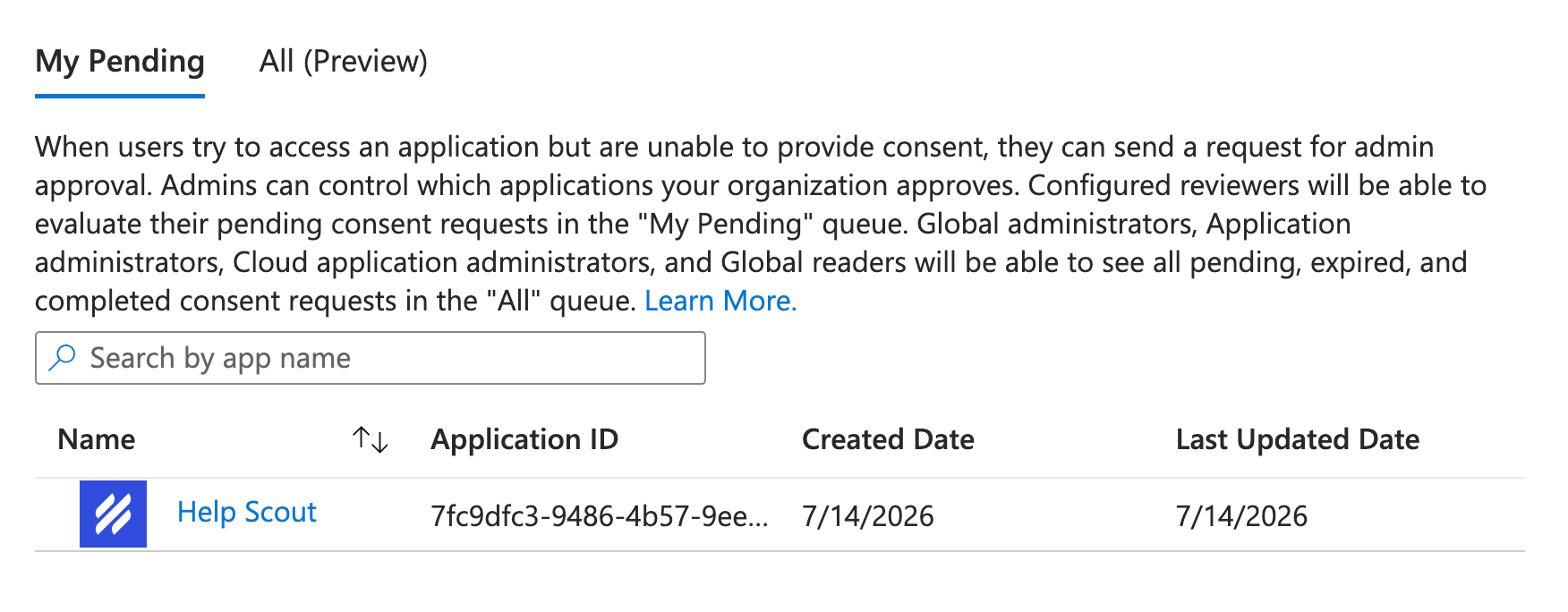
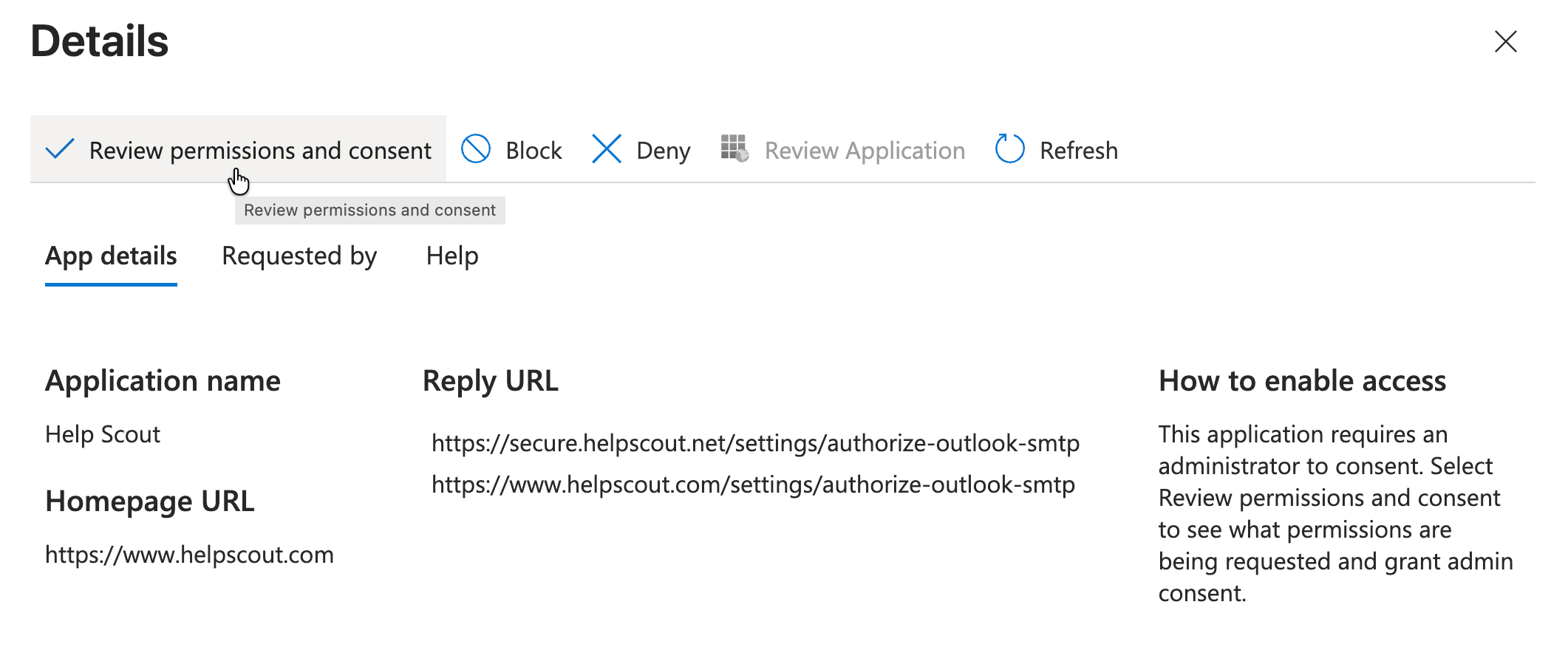
(Your Microsoft 365 Administrator) In the Entra admin center, head to Enterprise Apps > Admin consent requests (or use this direct link: https://entra.microsoft.com/#view/Microsoft_AAD_IAM/StartboardApplicationsMenuBlade/~/AccessRequests?Microsoft_AAD_IAM_legacyAADRedirect=true). Find Help Scout in the list, click it, then click Review permissions and consent. Choose the administrator account when prompted, then click Accept.
-
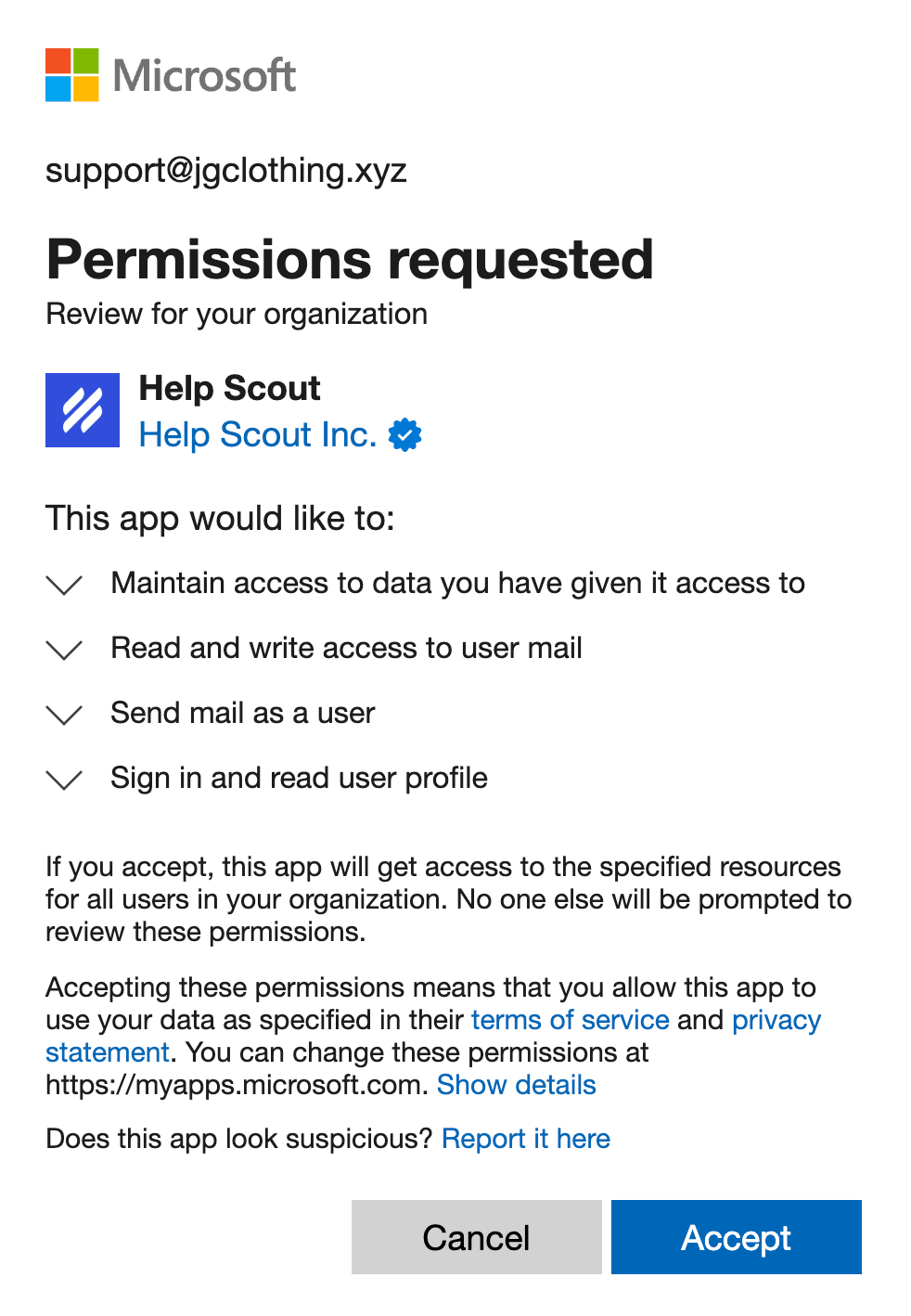
(You) Repeat steps 1 and 2 above, but on step 2 you'll have the option now to Accept the permissions.
And that's it! You're now sending email from Help Scout using Microsoft 365 servers!
