Connect Twilio to Help Scout to Send and Receive Text Messages
Connect SMS to Help Scout so your customers can text your business number and your team can reply right from the inbox — no separate texting app needed.
In this article
| Permissions & Plans Access | |
|---|---|
| Plans With Access | All paid plans |
| User Roles and Permissions | Account Owners and Administrators can connect and manage channels |
How SMS works in Help Scout
Help Scout creates a new conversation in your Inbox when a customer texts your connected SMS number. Your team replies from Help Scout, and the customer receives your reply as a text message. Conversations render as chat bubbles, the same layout used for WhatsApp, Messenger, and Instagram.
Each conversation is automatically tagged with sms , and the subject line shows the customer’s phone number.

Customers can send text messages and MMS attachments, and your team can reply with both. Attachments from customers appear in the Help Scout conversation. When your team replies, they can add attachments, plain text, and links.
Multiple numbers per Inbox are supported. You're not limited to one SMS number the way you are with WhatsApp.
You can start a new SMS conversation from Help Scout. You cannot add attachments when starting it. For steps, see Create a New Conversation.
Message Limits
There is a 1,600 character limit in a single message for SMS messaging. When your reply would take more than one text message, the composer shows a counter with the message count and character count — so your team can see how many texts a long reply will actually send.
Before You Get Started
Things to have setup before you start:
-
A Twilio account. If you don't have one, you can create one free at https://console.twilio.com/.
A phone number already provisioned in Twilio*.
- Check whether the number already has an SMS webhook configured in Twilio (for a custom app, Messaging Service, etc.). Connecting it to Help Scout will overwrite that webhook.
- Your Twilio Account SID and Auth Token, found in the Twilio Console.
*The phone number must not be managed by a Twilio Messaging Service. If a number belongs to a Messaging Service, its webhook routing is controlled at the service level, not the number level. That overrides the per-number webhook Help Scout configures, so you'll need to remove the number from the Messaging Service first.
Connect Your SMS Number
-
In Help Scout, go to Settings (gear icon) > Inboxes > [Choose Your Inbox] > Connect Channels. Click Connect next to SMS in that list.
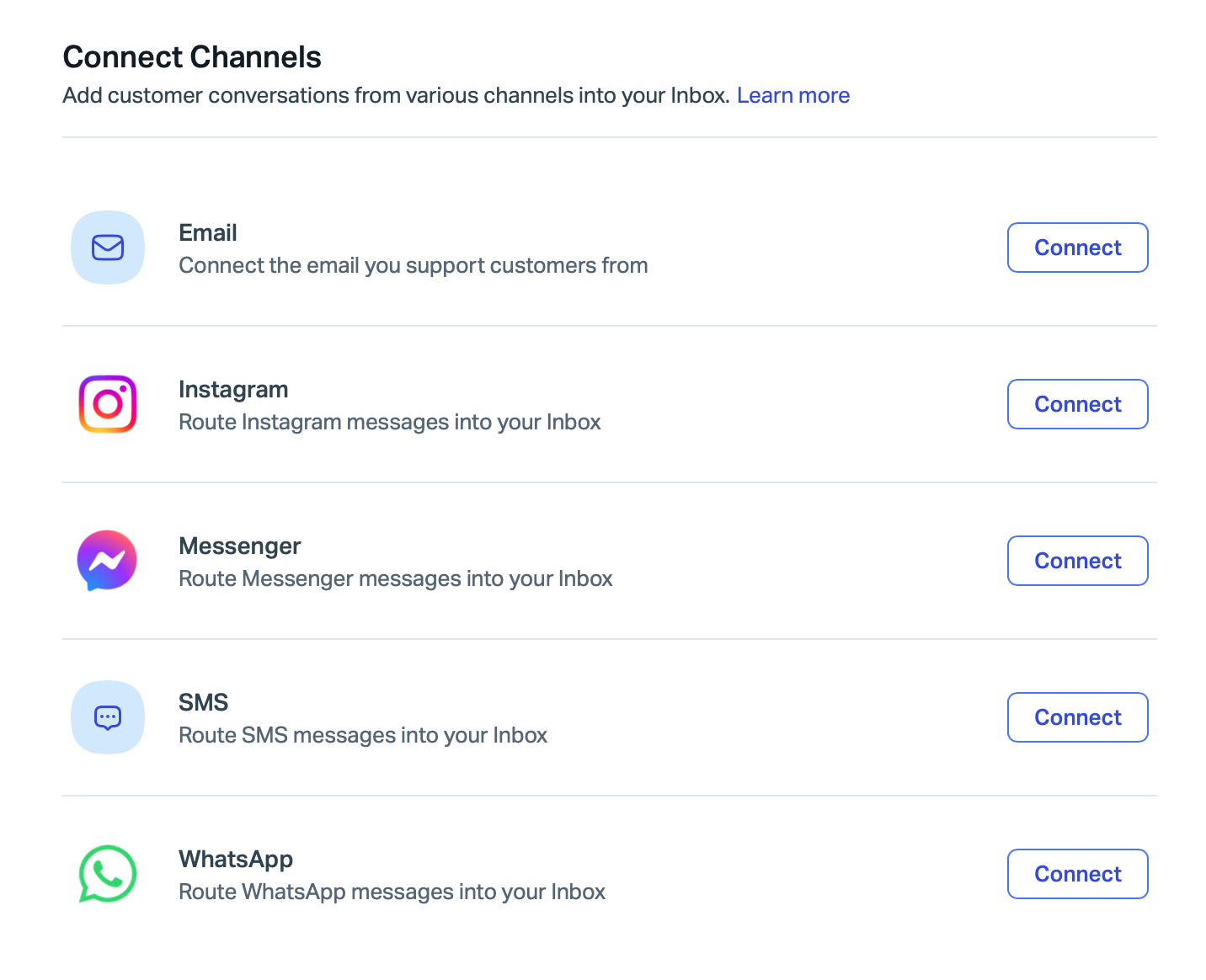
Connecting a number overwrites its existing SMS webhook in Twilio. Help Scout needs that webhook to receive your texts, so if the number is already routing SMS through a custom app or another service, that setup gets replaced. No other settings on the number are affected.
-
Enter your Twilio Account SID, Auth Token, and the phone number you want to connect and click Save.
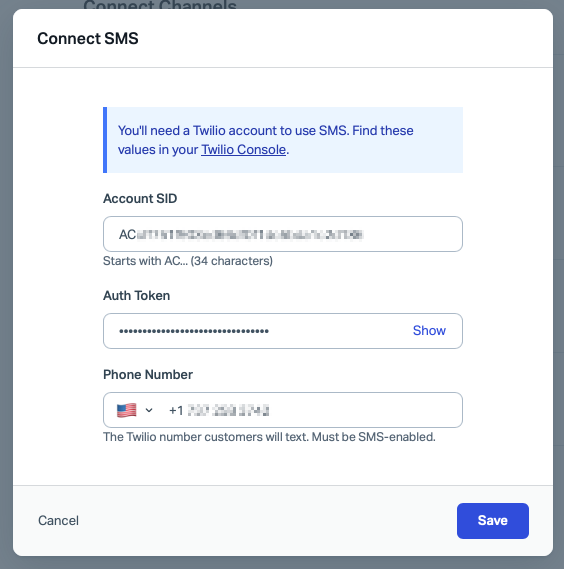
If something's wrong with what you entered, you'll see an inline error explaining what to fix, for example:
- Incorrect Account SID or Auth Token — double check your SID or Auth Token.
- Phone number already connected — each phone number can only be connected once. If you're trying to move a number between Inboxes or accounts, remove it from its current connection first.
- Number not found in Twilio, or tied to a Messaging Service — Confirm the number is provisioned in the Twilio account matching the Account SID you entered, and that it is not attached to a Twilio Messaging Service.
Verify Connection
- Send a text message to your connected Twilio number from a personal phone.
- Confirm it appears as a new conversation in your Help Scout Inbox.
Manage Connected Numbers
SMS supports multiple connected numbers per Inbox.
From Settings (gear icon) > Inboxes > [Choose Your Inbox] > Connect Channels, expand the SMS entry to:
- See all connected numbers for that Inbox.
- Add another number — you'll need to re-enter Account SID/Auth Token/phone number for each additional number, since each is its own integration.
- Remove a number — you'll see a confirmation before it's removed. Removing a number stops new conversations from arriving on it, but all historical conversations are kept.
There's no single top-level disconnect option — numbers need to be removed one at a time from this view.