Manage Your Status and Availability
Status helps your team understand when you’re available in Help Scout. This article covers how status works, where you’ll see it, and how it affects routing and chat.
In this article
What is Status?
All users in Help Scout have a status they can control except Light Users. Status indicates whether you’re available to work in Help Scout and helps your team understand when you’re around or away.
Status Options
-
Active – You’re present in Help Scout and available.
-
Away – You’re not currently available
How Status is Displayed
A user’s status appears as a presence indicator on their photo or initial avatar.
Green indicates Active
 |
Grey indicates Away
 |
Manage Status
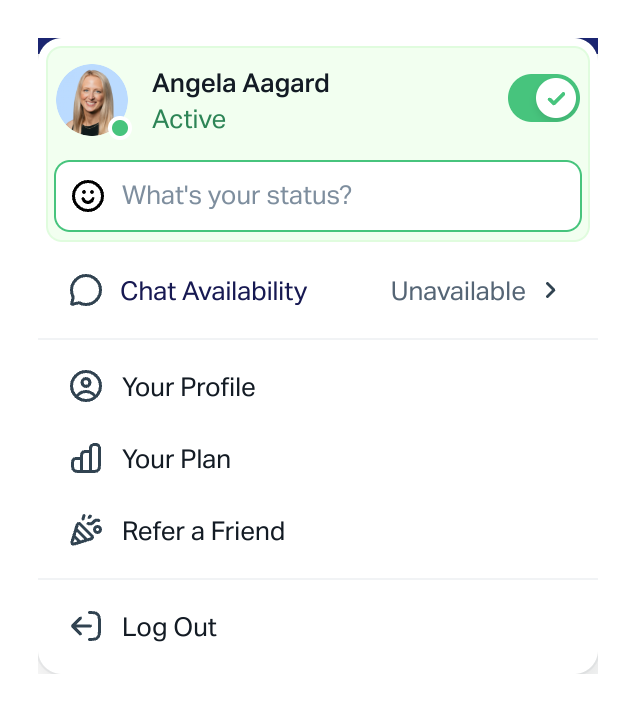
You can update your availability at any time from the account dropdown in the top-right corner of Help Scout. Help Scout will also keep your status up to date automatically based on whether you have the app open — so your team always has an accurate picture of who's available without anyone needing to remember to toggle.
Update Your Own Status
-
Click your profile photo or initials
-
Use the toggle to switch between Active and Away
Automatic Status Updates
As long as you have Help Scout open in a browser tab, your status stays Active. When you close the tab or browser, Help Scout will automatically set you to Away within 10 minutes. When you open Help Scout again, your status will return to Active.
If you manually set yourself to Away (for example, before a meeting), the system won't automatically switch you back to Active — even if you continue using the app. You'll need to manually toggle back to Active when you're ready.
Set a Custom Status Message
You can add a custom message to your status to give teammates more context about your availability. For example, "In a meeting until 3pm" or "Out sick today."
-
Click your profile photo or initials
-
Click into the What's your status? field
-
Enter your message in the Set your status modal and click Save
To remove your status message, click your profile photo or initials and click the X in the What's your status? field.
Update Another User's Status
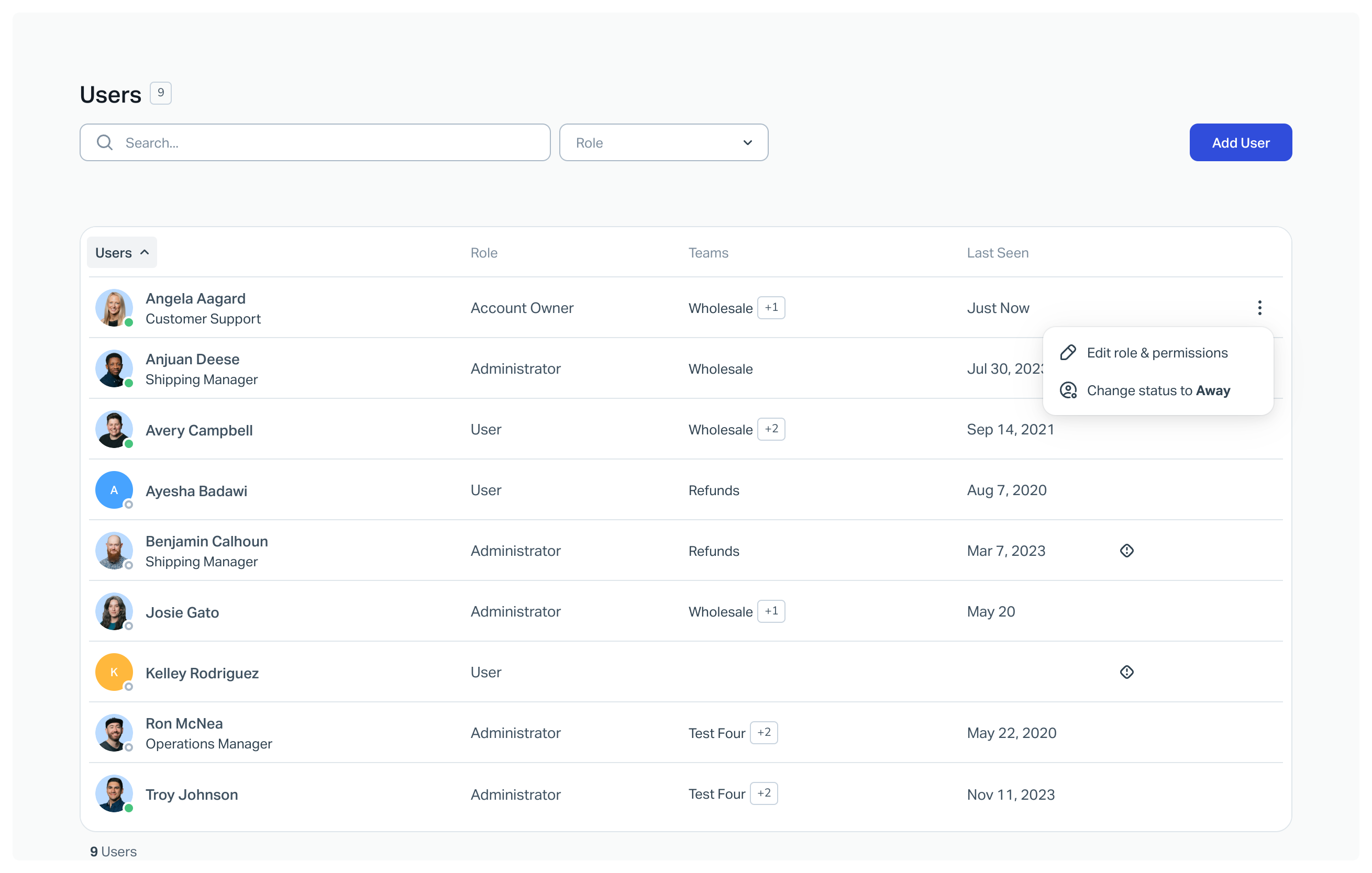
Account Owners and Admins can manage another user’s status from Settings (gear icon) > Users. Click into a user’s row or open the three-dot menu to change their status to Active or Away.
View a Teammate’s Status
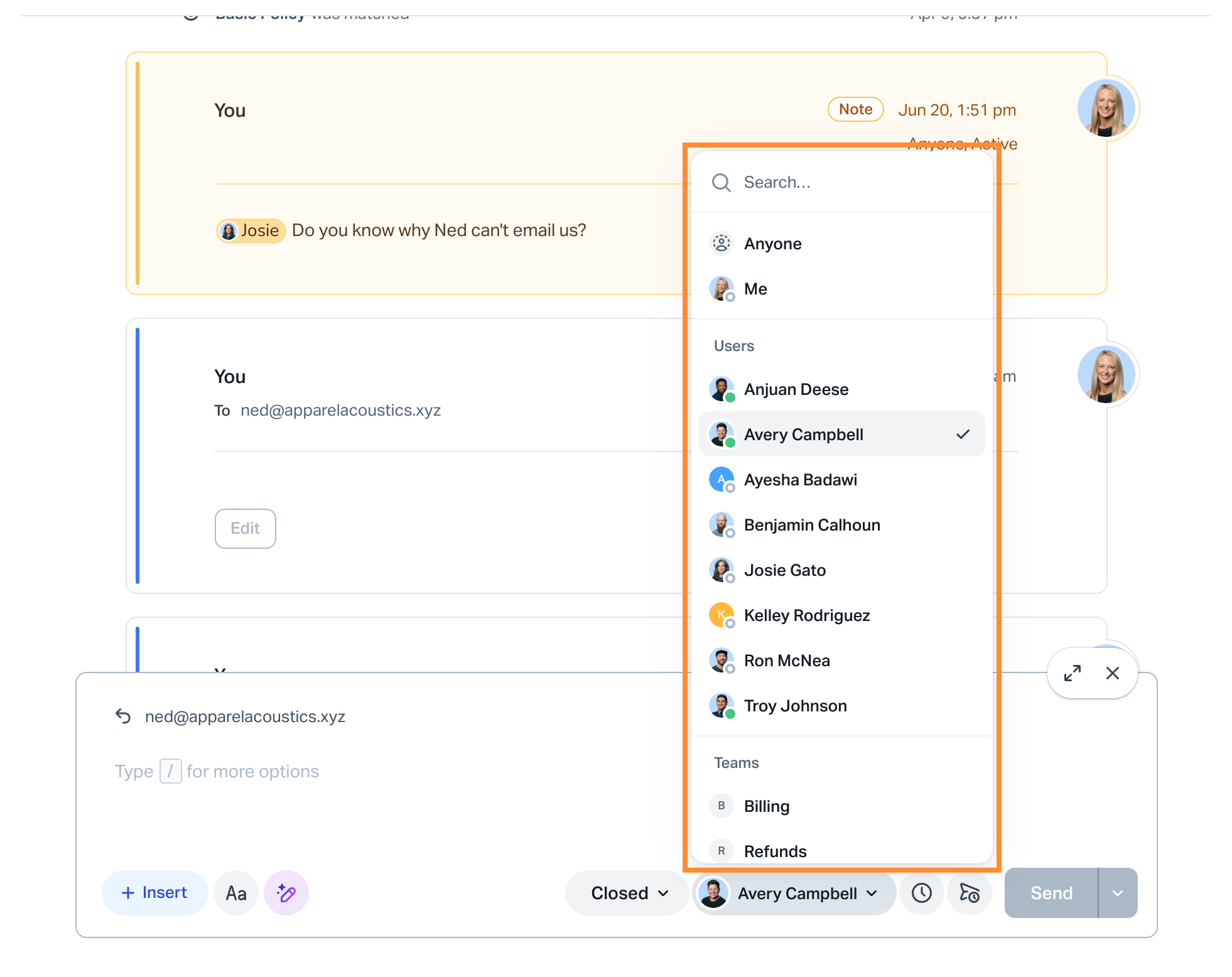
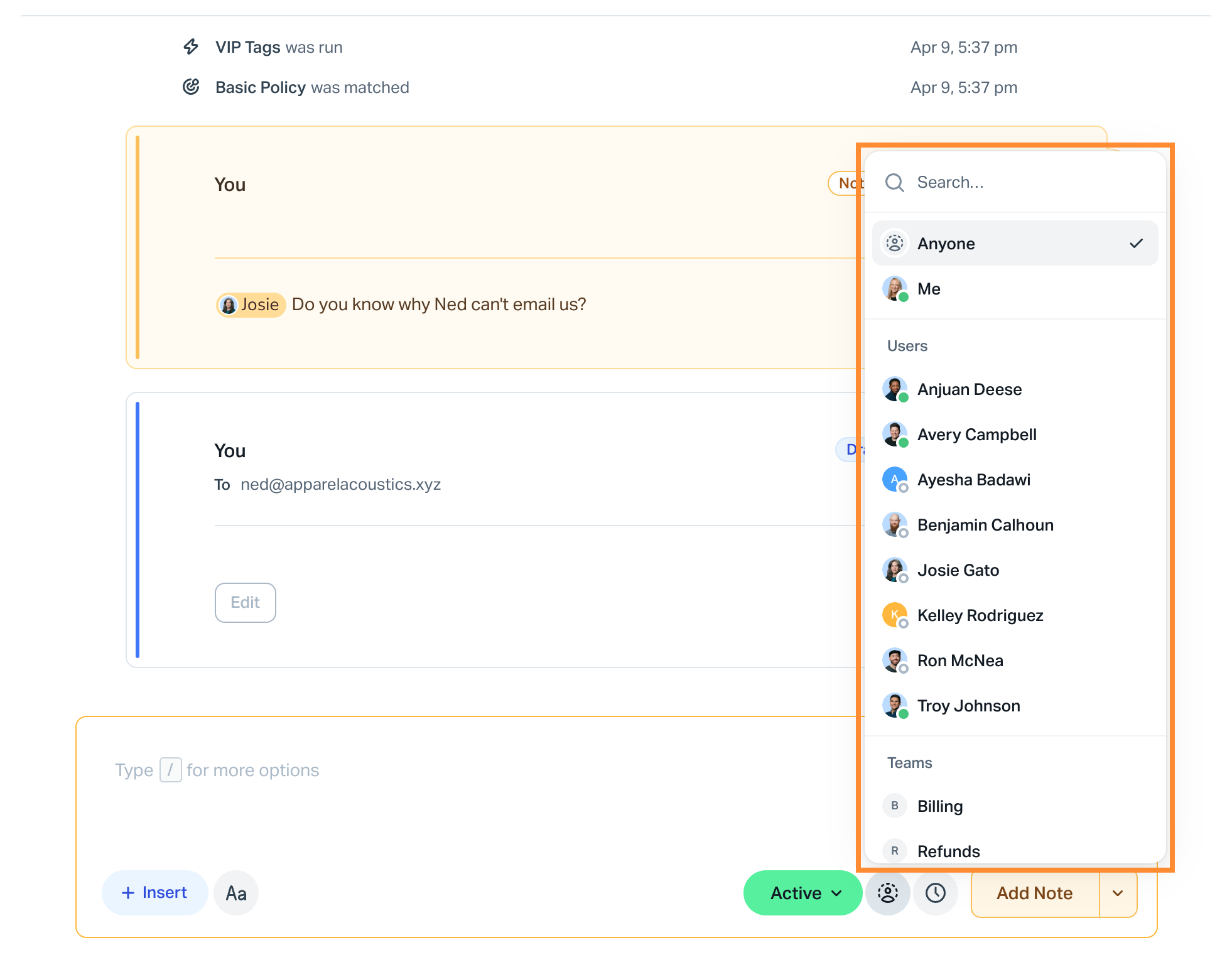
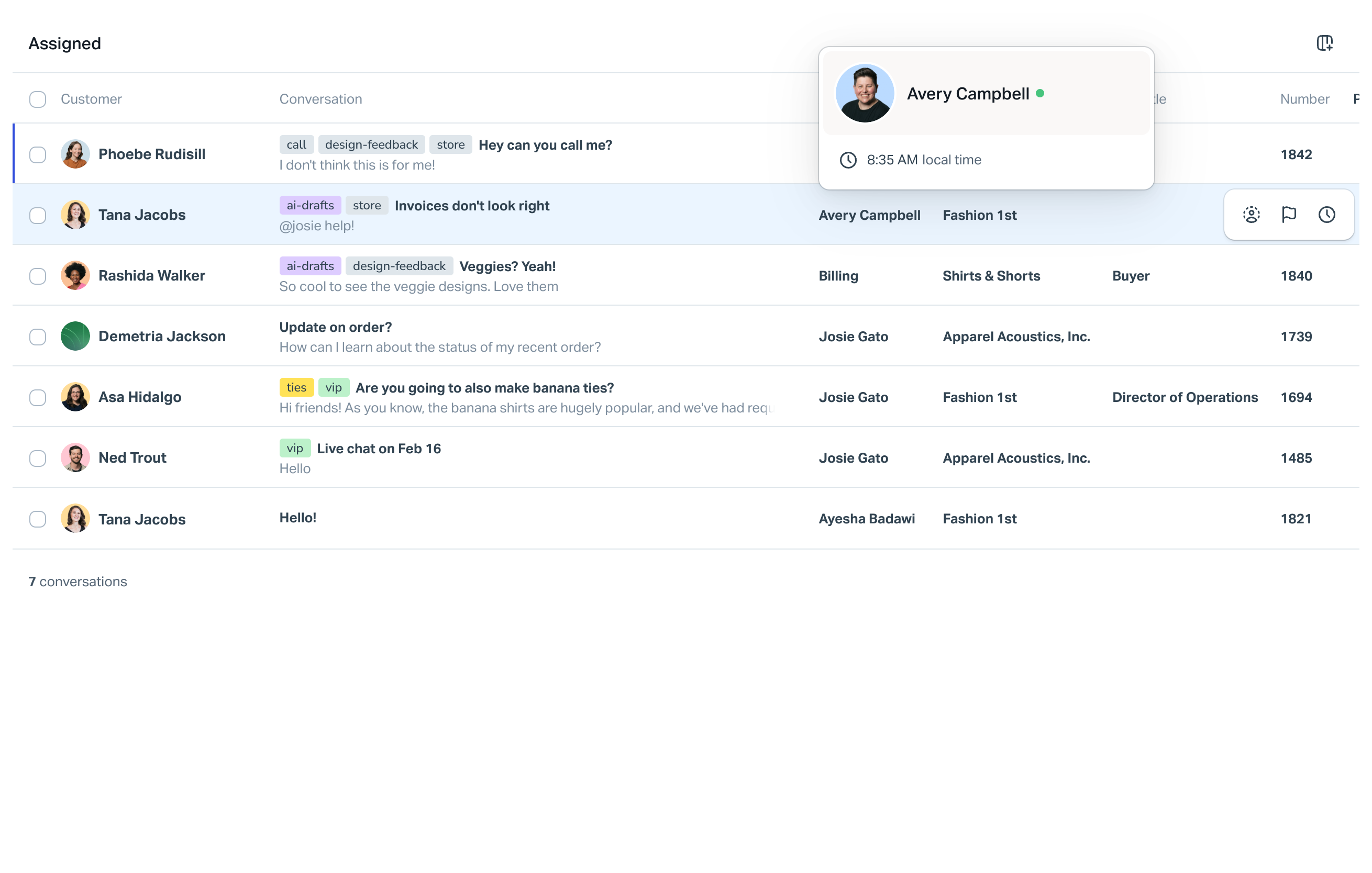
A teammate’s status will show where it’s helpful to understand whether they’re available. This is shown through a presence indicator on their photo or avatar, including:
-
When assigning conversations
-
When mentioning teammates in notes
-
Anywhere the Assign column appears — hover over the user's name
To learn more about customizing your conversation list, see Column Management.
How Status Impacts Routing
Your status determines whether you’re eligible to receive automatically assigned conversations when using the routing feature.
-
When your status is Active and you’re below your assignment limit, routing can assign conversations to you automatically.
-
When your status is Away, you won’t receive any automatic assignments via routing.
Status does not affect:
-
Manual conversation assignments
-
Assignments made through Workflows
Because presence detection automatically sets you to Away when you leave the app, routing rotations stay accurate without anyone needing to manually manage their status at the start or end of a shift.
To learn more, see Use Routing to Automatically Assign Conversations.
How Status Affects Chat
Status and chat availability work alongside each other, but they’re managed separately. Status alone does not control chat availability.
If chat is enabled in a Beacon, to control your chat availability, your status must be set to Active. If your status is Away, the Chat Availability option won’t appear in the account dropdown menu.
To learn more about managing your Chat Availability, see User Availability and Maximum Chats.