Connect Slack With Help Scout to Get Notifications in Slack
Slack brings all your team communications into a central hub. In addition to group chat and instant messaging, Slack integrates with many of the services you use every day and posts automatic updates in a channel (similar to a room) of your choice.
The new beta version of our Slack integration sends Help Scout conversation notifications to Slack using notification rules. Rules can route different inboxes, event types, and optional filters to different Slack channels. Multiple rules can post to the same Slack channel, and a single Inbox can use multiple rules to send different events to different channels. Notifications can include conversation links and @mention the assigned Help Scout user when a Slack user mapping exists.
In this article
Before You Begin
| Permissions & Plans Access | |
|---|---|
| Plans With Access | All current paid plans: Standard, Plus and Pro |
| User Roles and Permissions | Account Owners, Administrators and any user with the Access API permission can install and configure |
You can connect one Slack workspace per Help Scout account. Rules can use multiple Slack channels for each Inbox.
This integration sends notifications from Help Scout to Slack only. Slack is not a Help Scout support channel, so you cannot create or manage Help Scout conversations from Slack with this integration.
Note: If you have the previous version of our Slack integration installed, it will continue to work for now. You can install this upgraded version alongside the previous one and remove it when you're ready.
Activation Instructions
-
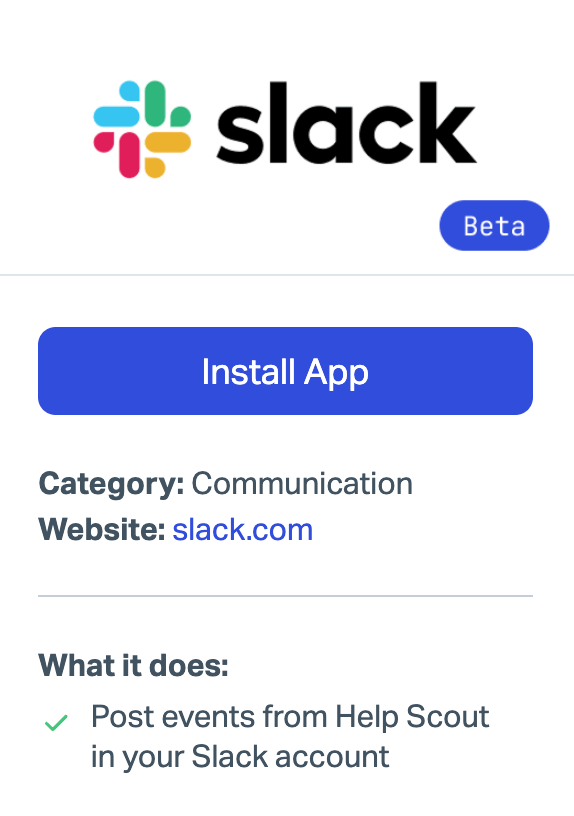
Head to Settings (gear icon) > Apps > Slack Beta and click Install App.
-
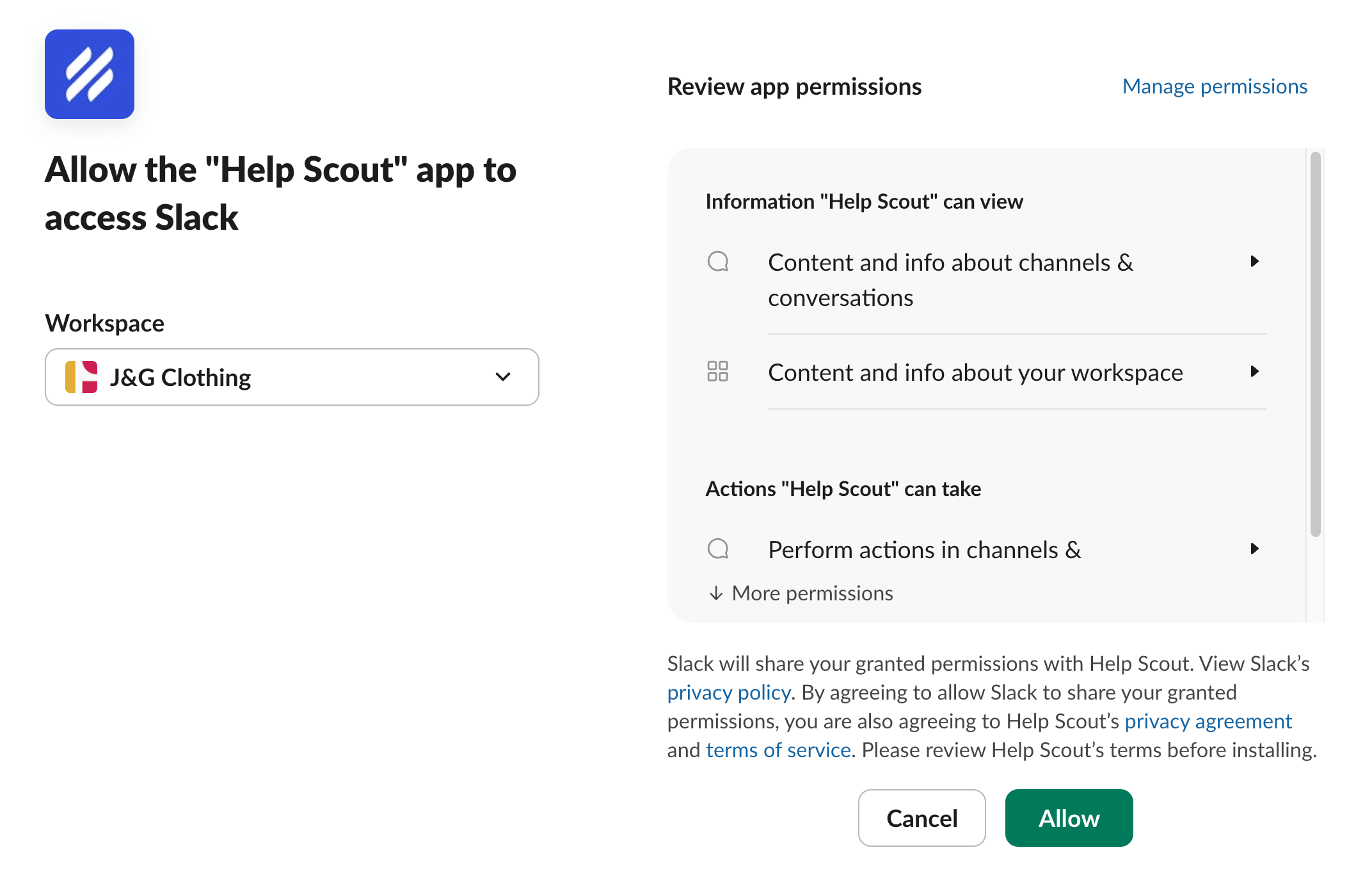
If prompted, log back in to your Slack account and then click Allow.
-
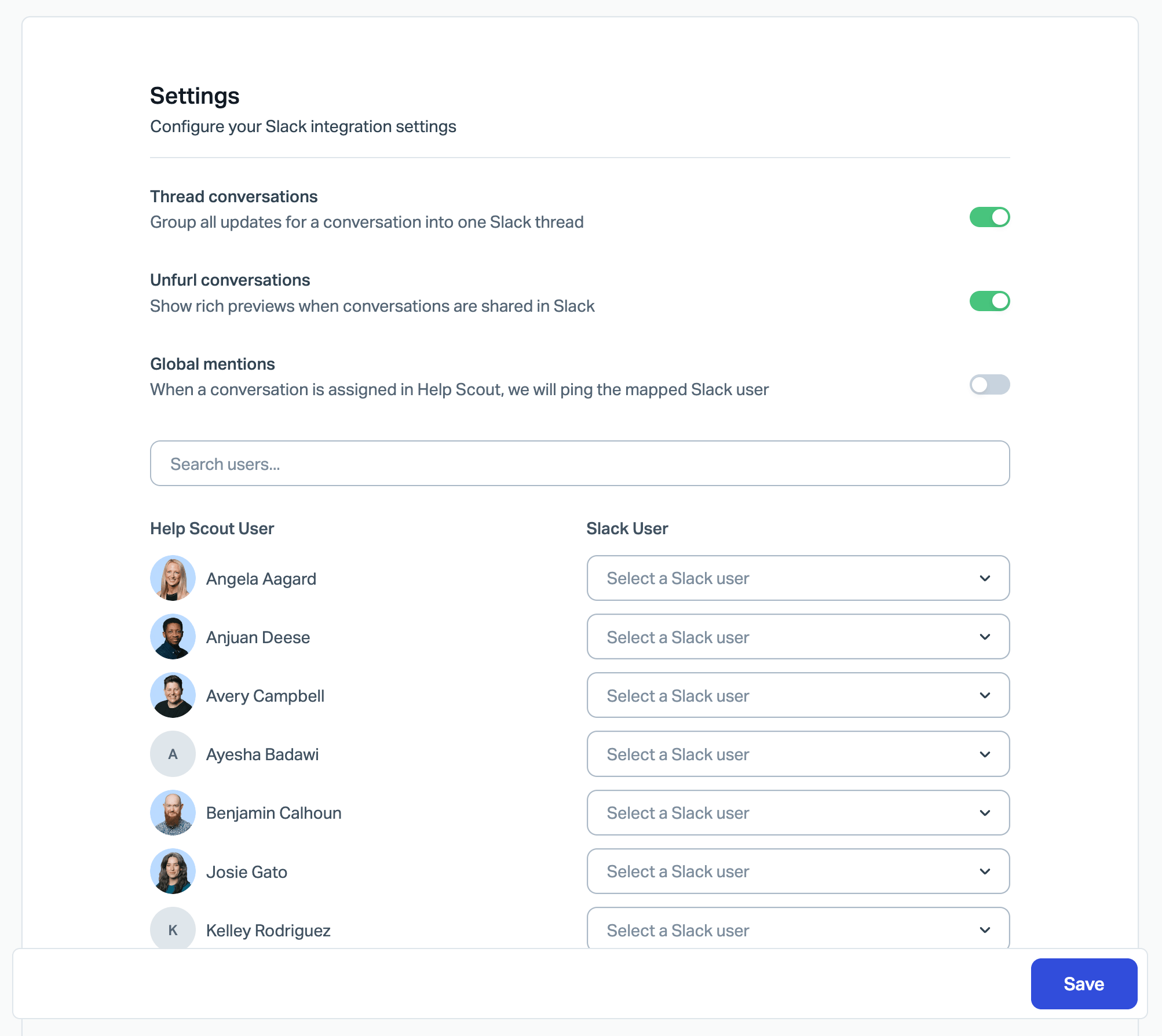
Configure your settings in Help Scout. Choose whether or not you want to Thread conversations or Unfurl conversations. If you choose to Enable Global mentions, map your Help Scout users to Slack users to make sure the correct person gets the ping.
In threaded mode, later updates for the same Help Scout conversation post as replies under the original Slack message. In standalone mode, each event posts as a separate Slack message, which matches the legacy behavior.
See Link Unfurling below for more on that option.
-
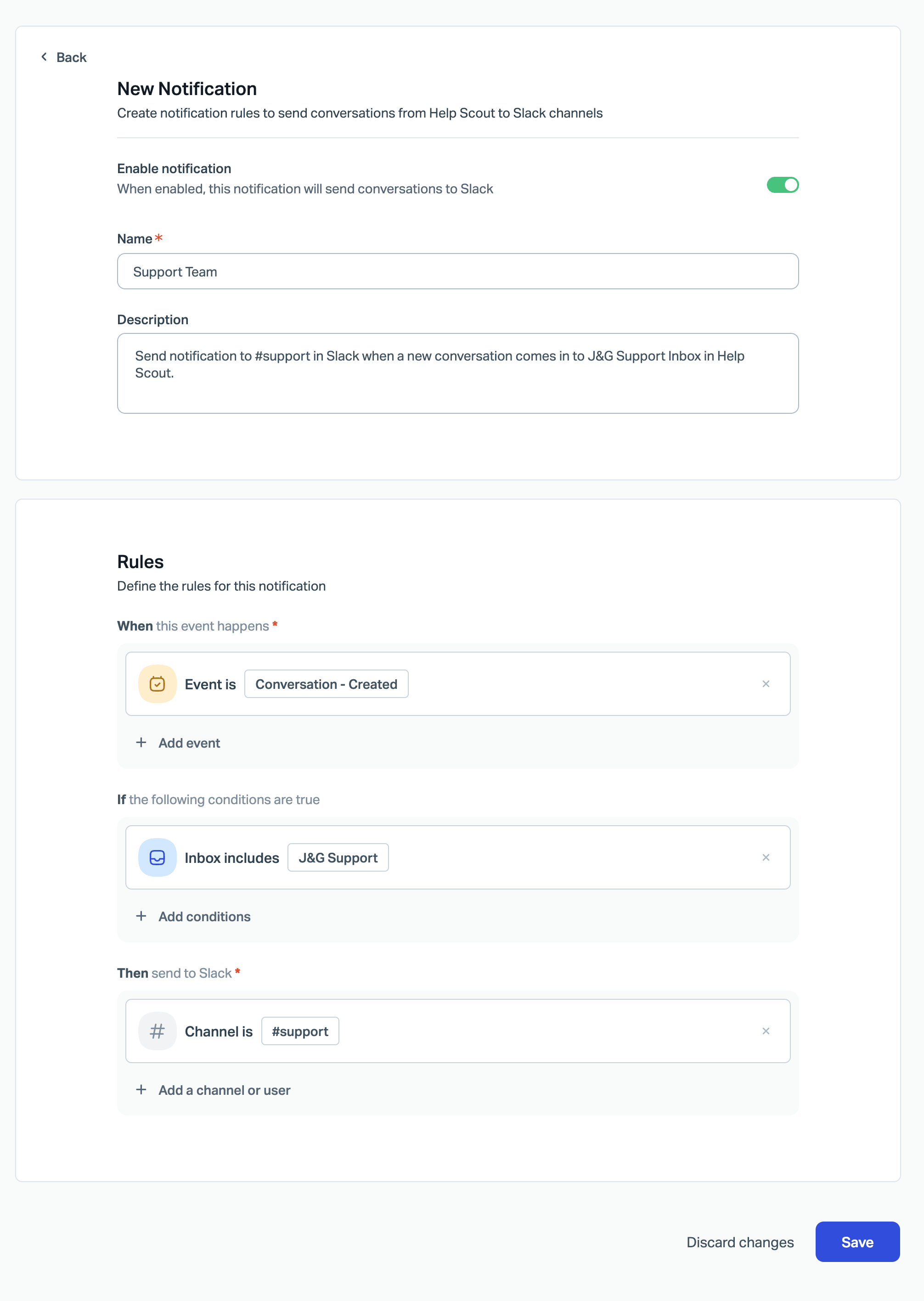
Click the Notifications tab at the top. Create your first notification by clicking New and configuring your notifications.
Link Unfurling
When a Help Scout conversation URL is shared in Slack, Slack can expand it into a preview card. For non-HIPAA accounts, the preview can include the conversation number and subject, message preview, status, assignee, inbox name, customer name and company, tags, waiting since, and reply count.
For HIPAA accounts, link unfurling uses HIPAA-safe defaults and is disabled by default. If enabled, previews are limited and omit PHI-sensitive details such as the subject line, message preview, and customer name or company.
Note: If your organization signs a BAA with Help Scout and uses HIPAA compliance features, Slack notifications and unfurled previews do not expose full conversation data that might contain PHI. You can toggle link unfurling on or off in the Slack app settings.
Uninstall Slack
If your team uses both Slack integrations while moving from the legacy integration, disconnect the legacy app after your current notification rules are configured and working.
-
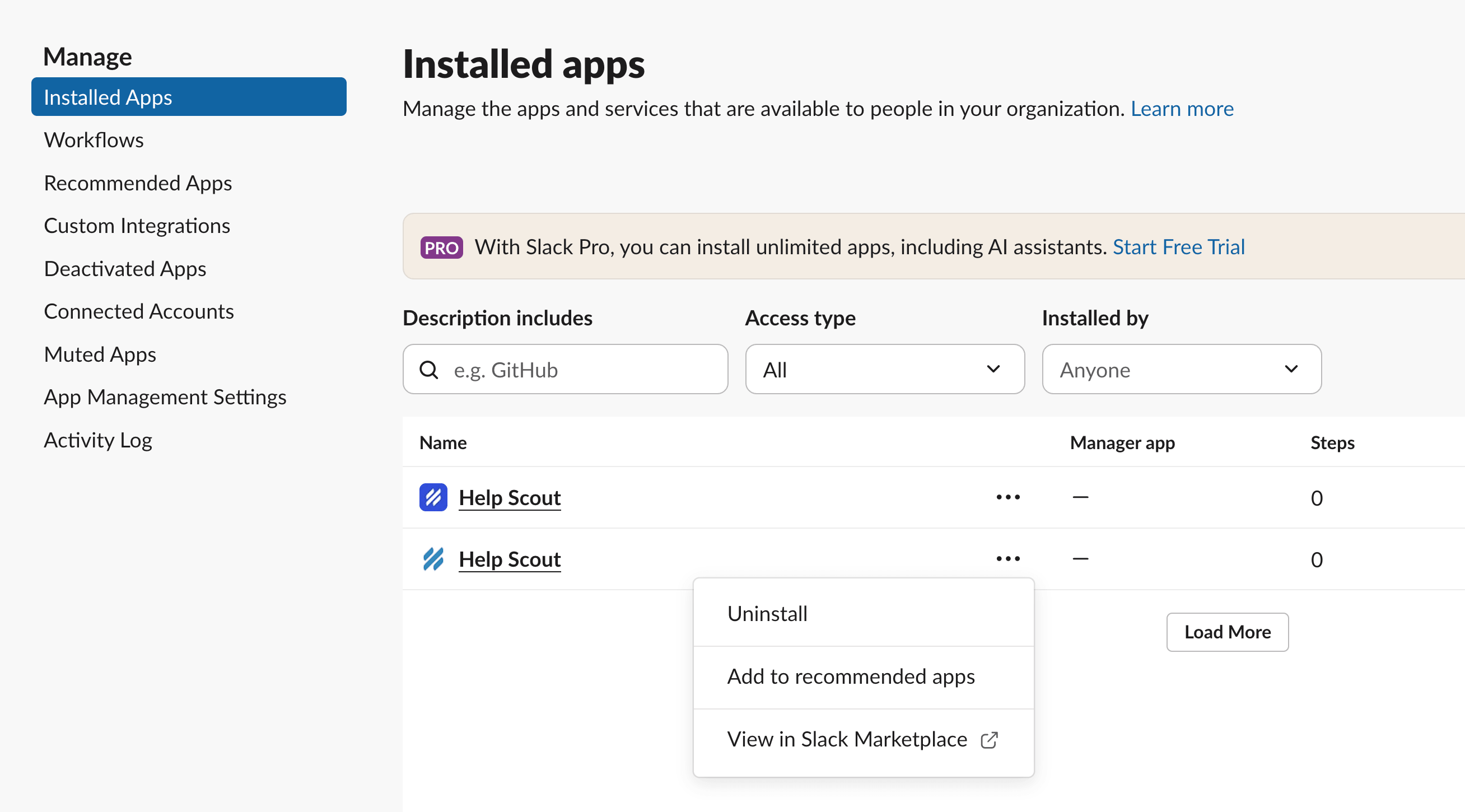
Log into Slack as a space administrator and navigate to https://app.slack.com/apps-manage/. Find the Help Scout app you wish to remove, click the three-dots option menu, and choose Uninstall.
The previous version of the Help Scout app is the logo with a white background; the dark blue with white logo is the current version.
-
Head to Settings (gear icon) > Apps > Slack or Slack Beta in Help Scout and click Uninstall App.