Connect WhatsApp to Help Scout to Send and Receive Messages
Connect WhatsApp to Help Scout so your customers can message you on WhatsApp and your team can reply right from the inbox — no app-switching needed.
In this article
| Permissions & Plans Access | |
|---|---|
| Plans With Access | All paid plans |
| User Roles and Permissions | Account Owners and Administrators can connect and manage channels |
How WhatsApp works in Help Scout
Help Scout creates a new conversation in your Inbox when a customer messages your connected WhatsApp business number. Your team replies from Help Scout, and the customer receives your reply in WhatsApp.
Each conversation is automatically tagged with whatsapp , and the subject line shows the customer’s name as it is in WhatsApp.

Customers can send you text, images, video, voice messages, and documents. Your team can reply with plain text, links, and attachments.
Before You Get Started
Things to have setup before you start:
-
A Meta Business Portfolio (formerly Facebook Business Manager). If you don’t have one, you can create one free at https://business.facebook.com or during the setup flow.
-
Admin access to that Meta Business Portfolio.
-
A WhatsApp Business Platform account (the standard WhatsApp Business App does not support third-party integrations)
-
A phone number that can receive a one-time verification code via SMS or voice call. You can use an existing business number or create a new one.
-
For the best experience, ensure your WhatsApp Business account display name and phone number are both verified by Meta before beginning.
Connect Your WhatsApp Number
The entire setup happens through a guided flow and there are no developer tools or technical setup required.
-
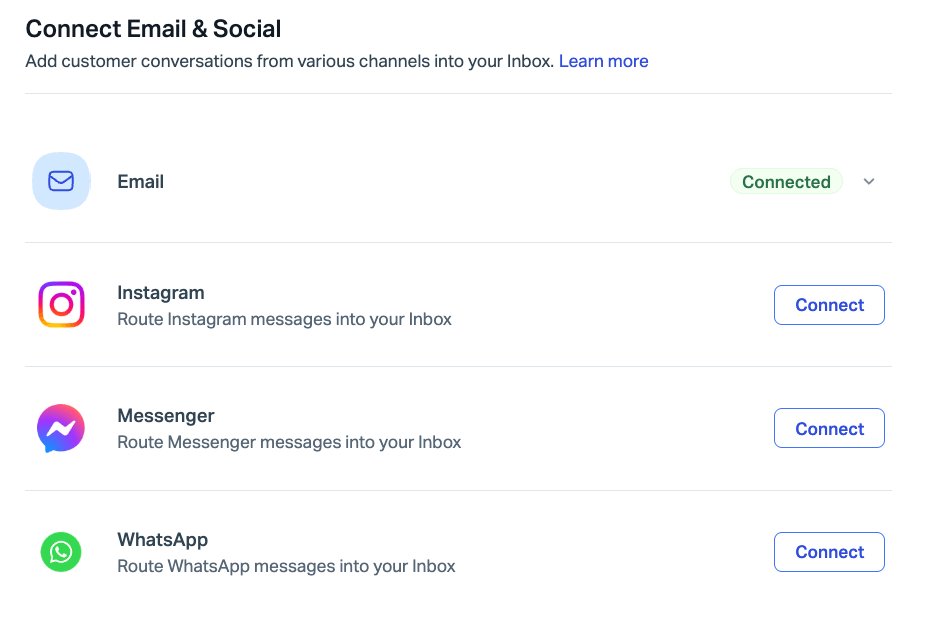
In Help Scout, go to Settings (gear icon) > Inboxes > [Choose Your Inbox] > Connect Channels. Click Connect next to WhatsApp in that list.
-
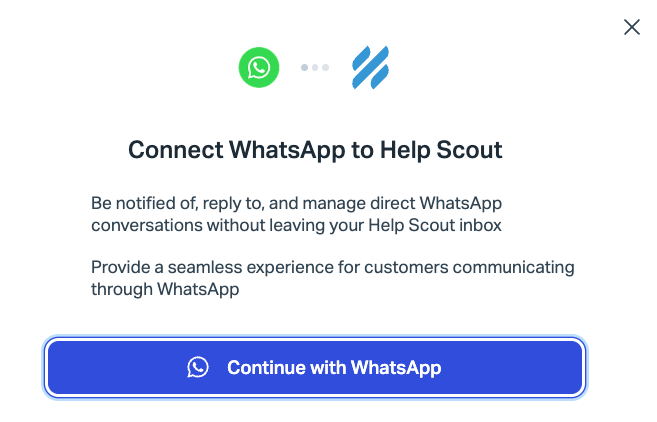
Click Continue with WhatsApp and log in with the Facebook account that has admin access to your Meta Business Portfolio in the popup that opens.
-
Select or create your Meta Business Portfolio.
-
Select or create a WhatsApp Business Account. This is the container Meta uses to manage your phone numbers and message templates.
-
Set up your business profile. Enter a display name (what customers see), choose a category, and optionally add a description.
-
Add your phone number.
-
Verify the number. Choose SMS or voice call and enter the one-time code.
-
Confirm the permissions, click Finish, and wait for the popup to close on its own. This may take a few moments as the registration is completing in the background.
⚠️ Do NOT close the popup window manually. If you close it early, the registration may not complete. If that happens, you will need to start the connection over.
Verify Connection
Check two things in your Meta Business Portfolio to make sure everything is working after you've completed the setup and send a test message.
-
Check your display name
Go to https://business.facebook.com and choose WhatsApp Accounts > WhatsApp Manager > Phone Numbers. Your display name should show as Approved. If it shows as Pending, it usually resolves within a few minutes but can take up to 24 hours. If it shows Rejected, contact Meta to understand why and what is needed for approval.
-
Check your phone number
On the same Phone Numbers page, your number should show as Connected. If it shows Pending or Offline, contact Meta for help with getting it connected.
-
Send a test message
Open a WhatsApp account on a personal phone (a different account than your business number) and send a message to your business number. It should appear in your Help Scout inbox.
✅ If the messages is in your Help Scout Inbox, congratulations, you’re live! Your WhatsApp channel is ready to receive customer messages.
Replies and the 24-hour Conversation Window
WhatsApp uses a conversation-based model with rules set by Meta. Here’s how it works:
-
When a customer messages you, a 24-hour customer service window opens. During this window, your team can reply freely with regular messages. If 24 hours pass without a new message from the customer, the window closes.
-
Once the 24-hour window closes, you can only respond to the conversation by sending an approved message template. This is a Meta requirement and applies to all WhatsApp Business API integrations, not just Help Scout.
-
If a customer replies, then you will be able to freely reply again and the 24-hour timer resets.
What this means for your team
Reply to WhatsApp conversations promptly. If a conversation goes quiet for more than 24 hours, you’ll need to use a template to follow up. You can use tags, Workflows, and Views to keep track of your WhatsApp conversations — check out Keep Track of Aging Conversations for help with keeping on top of this requirement.
Message Templates
Message templates are pre-approved messages you can send to customers outside the 24-hour window. They’re useful for things like follow-ups, appointment reminders, or shipping updates.
Templates are created and managed in your Meta WhatsApp Manager, not in Help Scout. Each template must be approved by Meta before you can use it, which usually takes a few minutes but can take up to 24 hours.
To create a template, go to https://business.facebook.com and choose WhatsApp Manager > Message Templates > Create Template.
Note: Only Utility type templates can be used to reply to conversations in Help Scout. They must be text-only templates without parameters such as variables and headers.

Helpful Tips
There are a few differences between WhatsApp conversations and regular email conversations in Help Scout that your team should be aware of.
-
No email address by default. WhatsApp doesn’t share the customer’s email. You can add one manually to the customer profile and merge it with an existing profile if you know who they are.
-
Limited formatting. WhatsApp doesn’t support rich text formatting like bold or italic in replies. URLs you include will automatically appear as clickable links for the customer.
-
Conversations continue in a single thread. Further messages from the same customer appear in the same Help Scout conversation. After 7 days, any replies from the customer will create a new conversation in Help Scout.
-
Media comes through as attachments. Photos, videos, voice messages, and documents your customers send appear as attachments in Help Scout.
-
One number per Inbox. You can have one Whatsapp number connected to one Inbox. We currently do not support multiple numbers per Inbox, nor can you use a single number across multiple Inboxes.
Technical Troubleshooting
My display name is approved but the integration isn’t working
This usually means your phone number didn’t finish registering. Review your Meta account to verify the status for your business number and reach out to Meta for support.
Meta rejected my display name
Your display name needs to be recognizable and match your actual business or website. Names like “J & G Clothing Support” will pass; generic terms like “Support” or “Agent” won’t. Re-run the signup flow to submit a new name. If you are still experiencing issues after that, reach out to Meta support for help.
I’m not receiving the verification code
Try switching between SMS and voice call. Make sure your phone isn't blocking international calls as it may come from an international number. If you’re verifying a landline, choose voice call. Wait for the full timeout before requesting a new code.
I want to use a number that’s already on WhatsApp
You can! Just be aware that once connected, the number will no longer work in the WhatsApp or WhatsApp Business mobile app, it will only work through the API that's integrated with Help Scout.
The Meta popup won’t load or shows an error
Try disabling ad blockers and popup blockers, clearing your browser cache, or switching to Chrome. Make sure you’re logging in with a Facebook account that has admin access to your Meta Business Portfolio.
I closed the popup before it finished
No problem. Re-run the signup flow, select your existing accounts instead of creating new ones, and click through to finish the signup flow.
Messages aren’t appearing in Help Scout
Confirm your number shows as Connected in https://business.facebook.com > WhatsApp Manager > Phone Numbers and your display name shows as Approved. If both look good, try disconnecting and reconnecting the WhatsApp channel in Help Scout.
Still stuck? Reach out to us with screenshots of your WhatsApp Manager Phone Numbers page and your Help Scout channel settings.
Disconnect the Channel
To remove WhatsApp numbers from Help Scout, head to Settings (gear icon) > Inboxes > [Choose Your Inbox] > Connect Channels and click the down arrow next to the green Connected badge. Choose Disconnect to remove the channel.