Set Company and Inbox Hours
Company Hours provide the default schedule for your inboxes. You can use that schedule to calculate response and resolution times and to send Auto Replies outside an inbox’s operating hours. Inboxes can inherit Company Hours or use their own Inbox Hours.
Help Scout Account Owners and Administrators can manage Office Hours. Custom Inbox Hours are available on Plus and Pro plans. On the Standard plan, an inbox can inherit Company Hours or remain open 24/7. See User Roles and Permissions for more information.
In this article
Set Company Hours
- 1
-
Click Settings (the gear icon), then select Company Hours from the menu on the left.
- 2
-
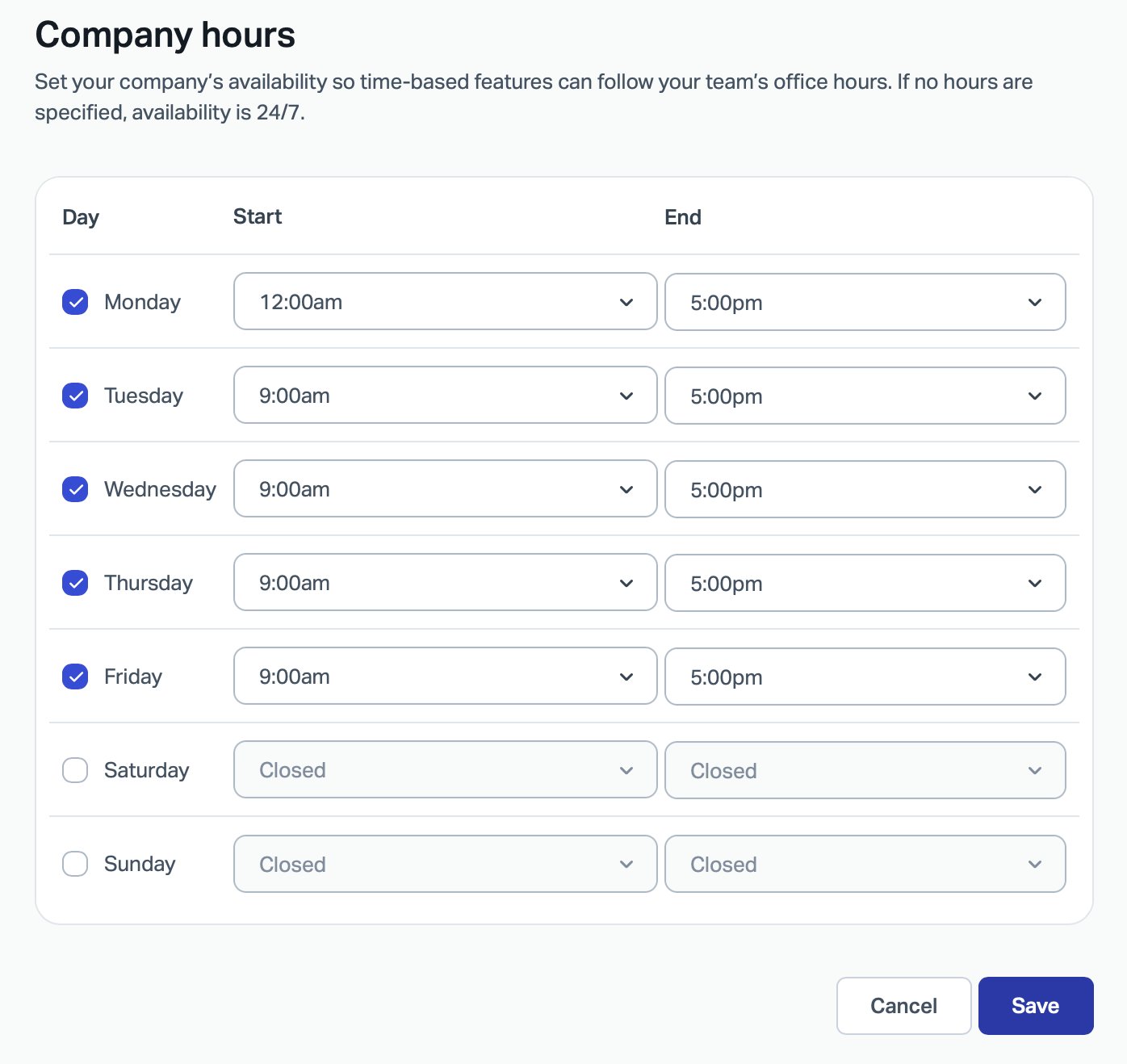
Select which days you are open and enter in start and end times. Enter your hours of operation for each day. Leave unchecked to indicate a full day of availability. Once finished, select Save.
Set Inbox Hours
- 1
-
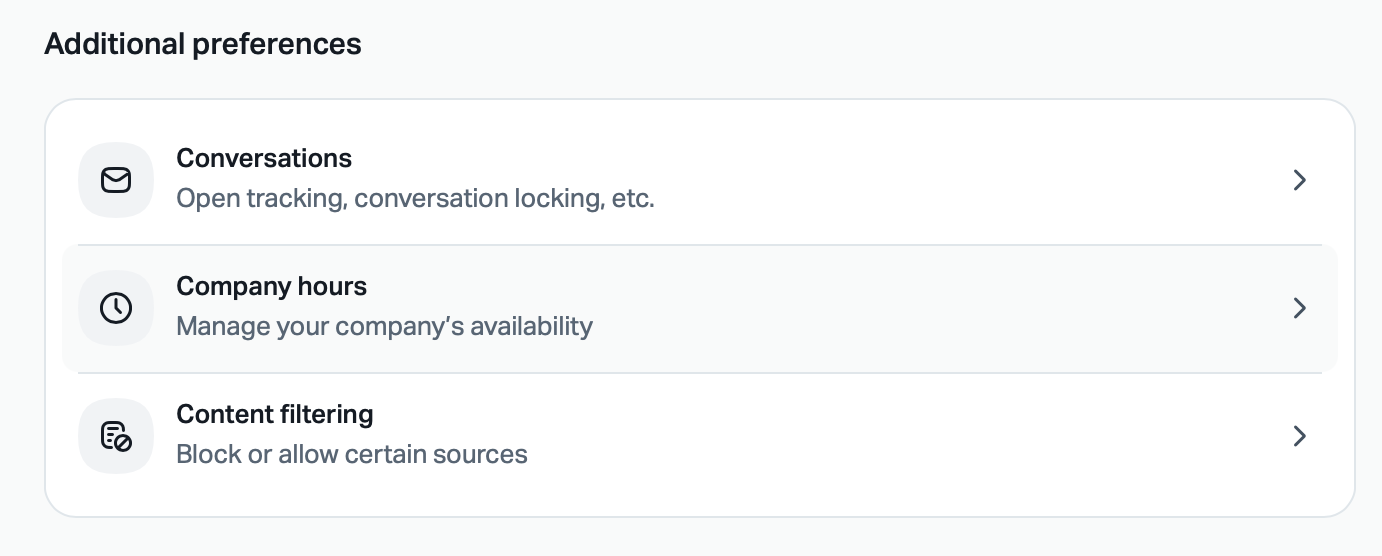
Open the relevant inbox, then go to Inbox Settings > Advanced > Inbox hours.
- 2
-
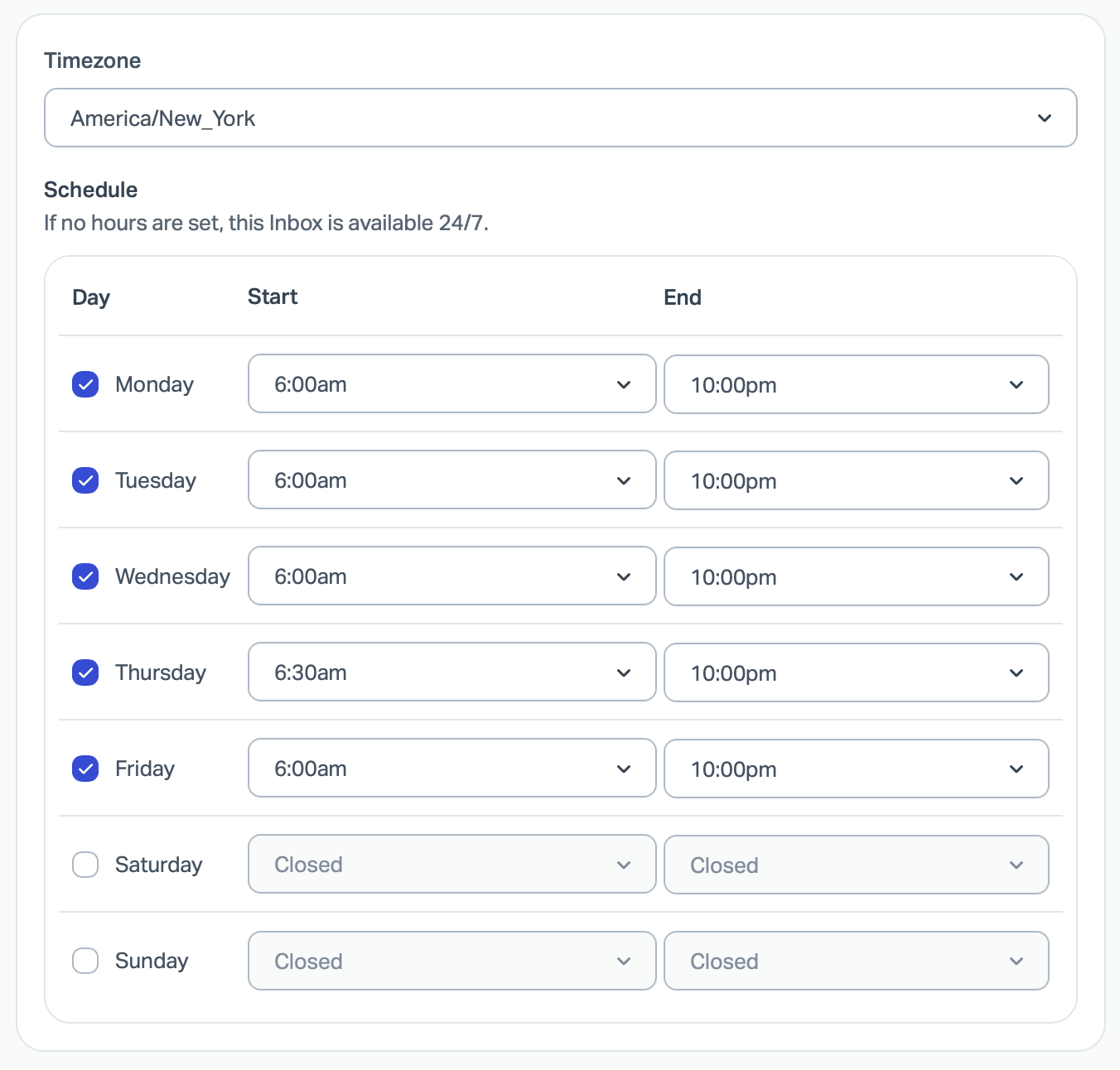
Keep the default setting to inherit Company Hours, or select Custom to set up a schedlue and/or timezone just for for that inbox on Plus and Pro plans.

Office Hours and Reports
Use the Office Hours filter in the Email Report and User Report to calculate response and resolution times against each inbox’s resolved schedule. Reports use custom Inbox Hours when configured, inherited Company Hours for inboxes using the default setting, or 24/7 availability when no schedule applies. Read more about Help Scout reports in Reports.
Office Hours in the Email Report
Check the Office Hours checkbox at the top right corner of the Response Time metrics, right below the main productivity chart. The Response Time metrics update instantly.
Office Hours in the User Report
Check the Office Hours box in the top right just above the graph. This will recalculate the Resolution and Response Time metrics for the user based on your Office Hours settings.

Office Hours and the Auto Reply
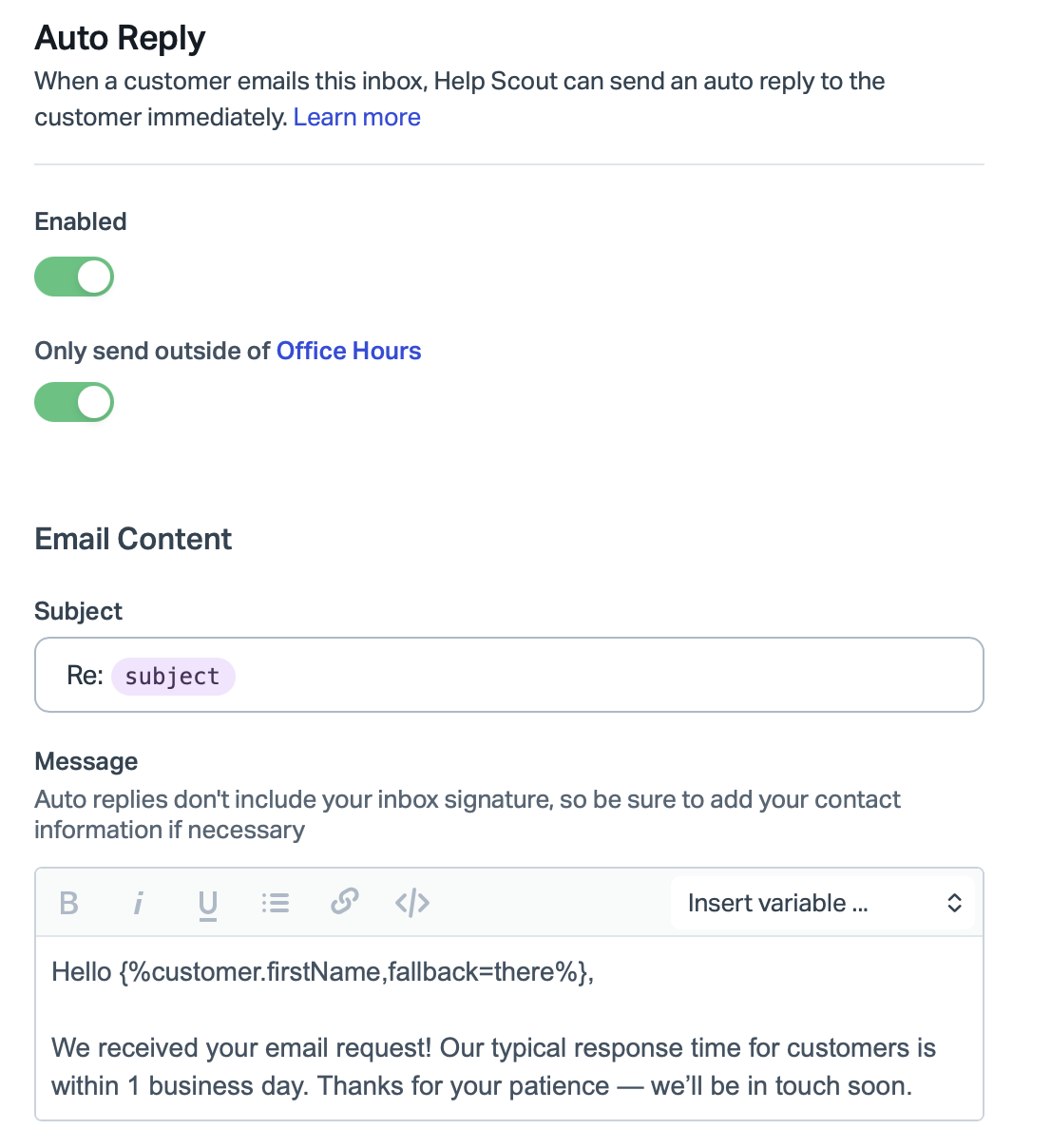
Use an Auto Reply to let customers know when an inbox is closed. Only send outside of office hours follows that inbox’s resolved schedule: custom Inbox Hours take precedence, while an inbox using the default setting follows Company Hours. An inbox set to Open 24 hours has no outside-hours period.
- 1
- Open the relevant inbox, then choose Inbox Settings > Auto Reply.
- 2
-
Make sure you've turned on the Auto Reply and toggle on Only send outside of office hours to only send that Auto Reply when you're not in.