Manage Scout Sources
Knowledge sources are where Scout finds the information it uses to answer customer questions. You can connect a Help Scout Docs site, add public web pages and files, and add short pieces of text that clarify or add to what’s already in your other sources.
To get started managing sources, just head to Scout > Manage.
In this article
Add a Docs Site
Choose the Help Scout Docs site Scout will use to find answers. You can add any Docs site on your account.
Just click Add or Add Source, then choose Docs. Choose the Docs site from the list of available sites.
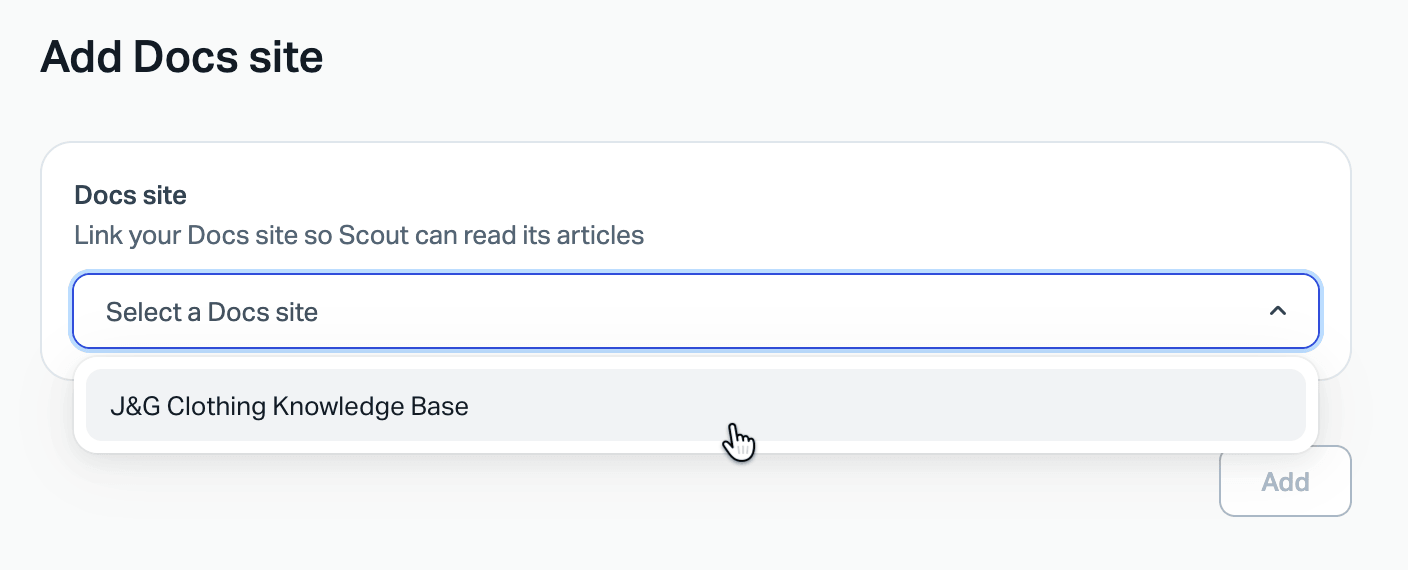
Scout stays synched with the selected Docs site all the time — any changes made in your Docs are immediately available to Scout for helping customers.
Don't have a Docs site yet? Check out Get Started With Docs for help there.
Looking for help with best practices with your Docs for Scout? We've got you covered with Write Docs That Work Well With Scout.
If you use a different knowledge base manager or your Docs lives on a different Help Scout account, you can add the live site to your sources as a website instead.
Add a Website
Add the URL of any publicly available page, such as a marketing site, an FAQ page, or a knowledge base. After you enter the URL, you'll see a list of all of the pages of the website that are publicly available. Choose the pages that you want Scout to use as a source.
Pro-tip: For more accurate answers, choose the specific pages that have your best information rather than an entire site.
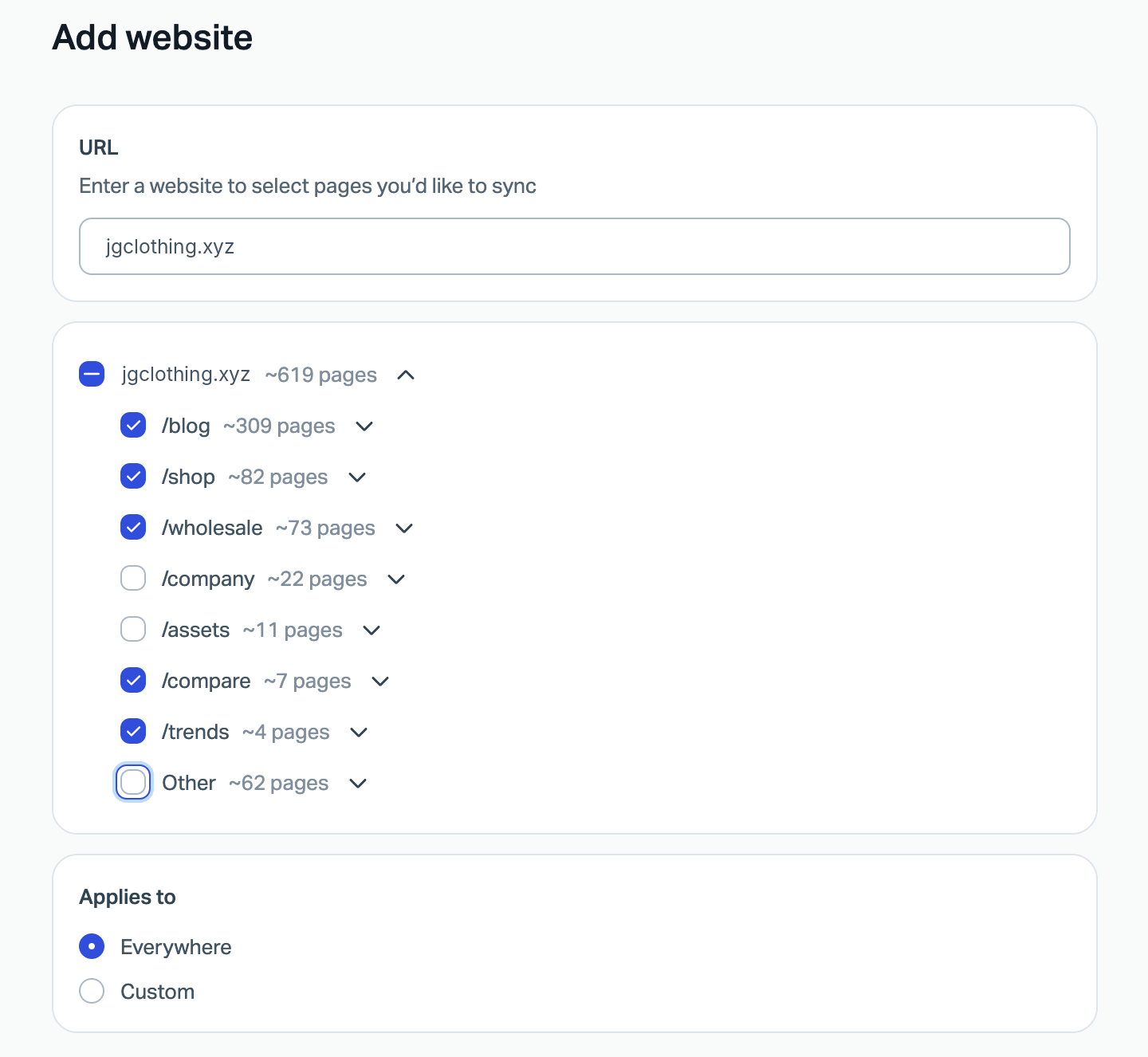
Scout can also sync the content of PDFs, Word documents, and Excel files found on the pages you add. You can also add a link to one of these files directly.
Note: Google Docs and Google Sheets files must be added one at a time, each as its own website source. Before you add the link, open the sharing settings in Google and set General access to Anyone with the link.
Re-sync a Website Source
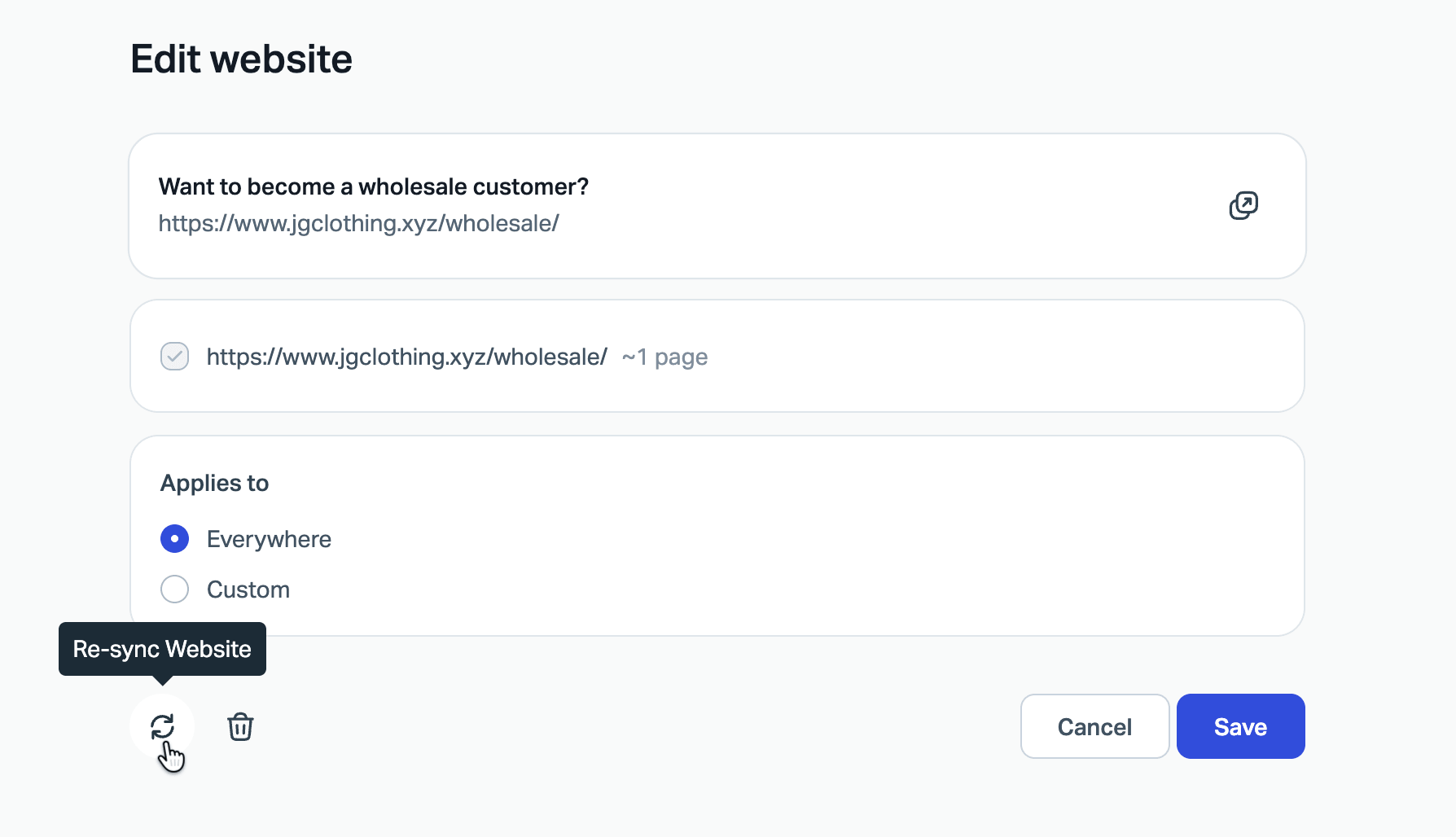
Scout doesn’t pick up website changes on its own. When something on a website source changes, such as pricing, product availability, or a procedure, re-sync that source so Scout has the new information.
Just head into Scout > Manage and find the website source that has change. Click on it then click the Re-sync Website button (the two arrows circling around).
Add Text
Text sources are short pieces of information or instruction that you add directly to Scout. They're the right tool when:
- Scout's answer was mostly right but missed a key detail or took a slightly wrong direction.
- Customers ask about something you don't offer — and you want Scout to respond clearly without it sounding like a refusal.
- A question comes up occasionally that's too specific or unusual to warrant a full Docs article.
- The answer involves account-specific help or requires a team member to step in — add an Improvement to direct the customer to contact support.
You can add a new Text source from a previous conversation by clicking Improve, by heading to Scout > Manage and adding it directly, or from a test conversation at Scout > Test.
Text sources are not a replacement for good Docs. If a question is common and the answer is relevant to most customers, update your Docs. If the issue is specific, rare, or support-dependent, a Text source is the right call.
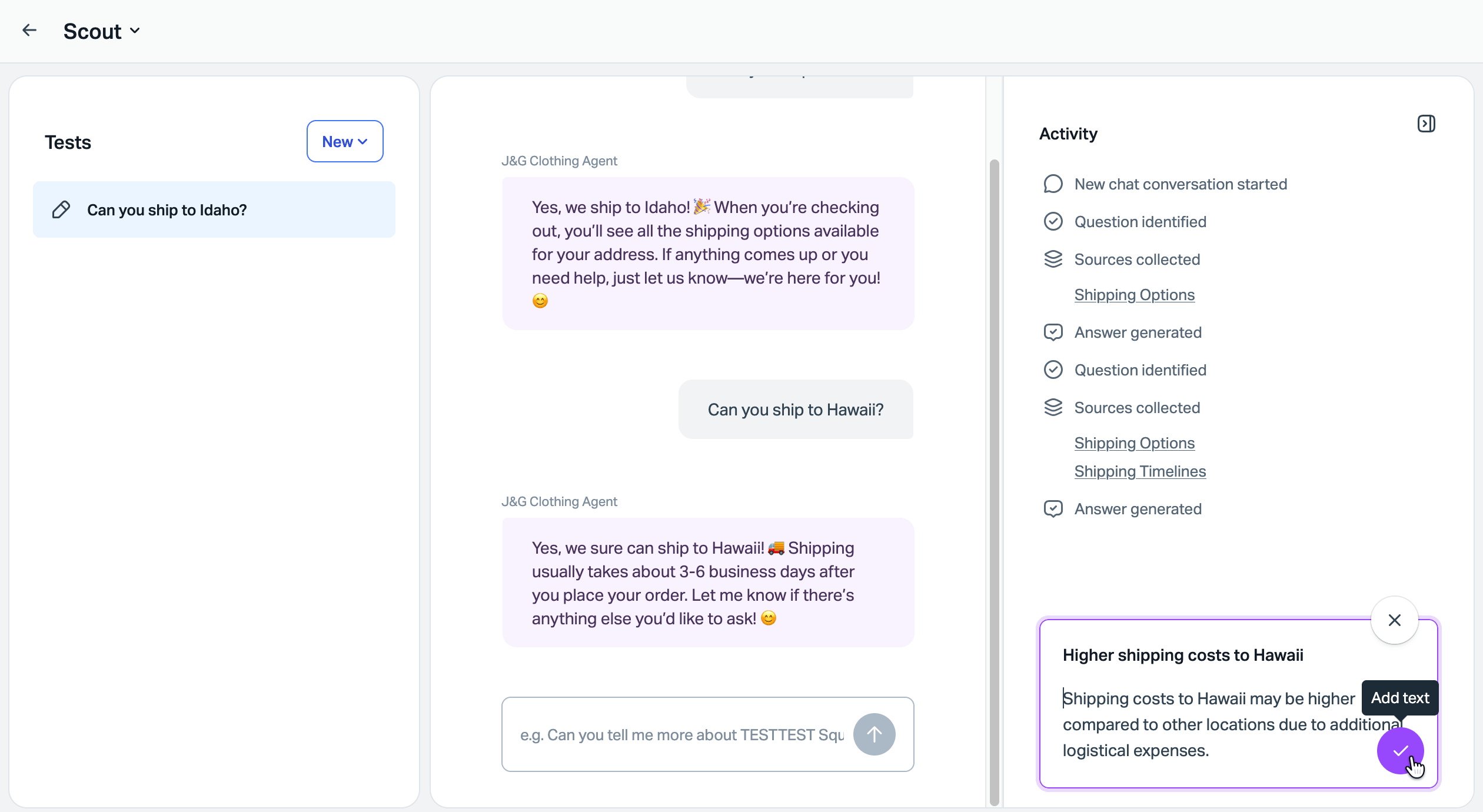
After adding a Text source, test it. Head to Scout > Test and ask it questions related to what you added. If the answer still isn't quite right, go back to Scout > Manage > Sources, find the Text, and refine it.