AI Answers Best Practices
AI Answers is a powerful tool for helping your customers get quick, accurate responses — but the experience you deliver depends on how thoughtfully you set it up and maintain it over time. This guide walks you through what to do to get started, how to shape and refine the way your AI Agent behaves, and how to build a routine for improving results.
Before diving in, make sure you've completed the initial setup — head to Get Started With AI Answers to find instructions to set it up if you haven't yet.
In this article
Start With Good Sources
Once AI Answers is live on your Beacon, take a moment to think about what you want it to do well. The clearest signal to your AI Agent is the quality of your Docs articles — the AI draws from your Help Scout Docs site (or other knowledge base added to the Agent's knowledge).
Before adding any other inputs, review your existing articles with fresh eyes:
-
Are the articles accurate and up to date?
-
Do they answer the questions customers actually ask?
-
Are there topics customers frequently contact support about that don't have a Docs article yet?
-
Are your articles clear and direct?
Filling those gaps in your Docs is the highest-leverage thing you can do. The better your documentation, the better your AI Answers will be out of the gate.
Your AI Agent can also pull from external sources — public websites, PDFs, Word documents, spreadsheets, and more. Keep sources focused. Adding targeted pages with reliable, relevant information will produce more accurate answers than adding an entire website.
Check out Write Docs That Work Well With AI Answers for more help with shoring up your documentation!
⚠️ Note: Sources other than Help Scout Docs need to be resynced manually when the content changes — for example, if your pricing updates or a process changes. Head to Tools > AI Agents > [Your Agent] > Knowledge and resync any affected sources to keep the AI current.
Shape Your AI Agent's Behavior
Beyond the knowledge sources you add, three settings shape how your AI Agent communicates with customers: Identity, Improvements, and Guardrails. Each has a different purpose, and using them together gives you precise control over the experience.
Head to Tools > AI Agents and select your agent to find these settings.
Identity
Identity is where you define who your AI Agent is. Use it to establish the tone, style, and general approach it takes when talking to customers. You can give it direction about your brand's voice, how formal or conversational it should be, and what kinds of things it should or shouldn't do in general.
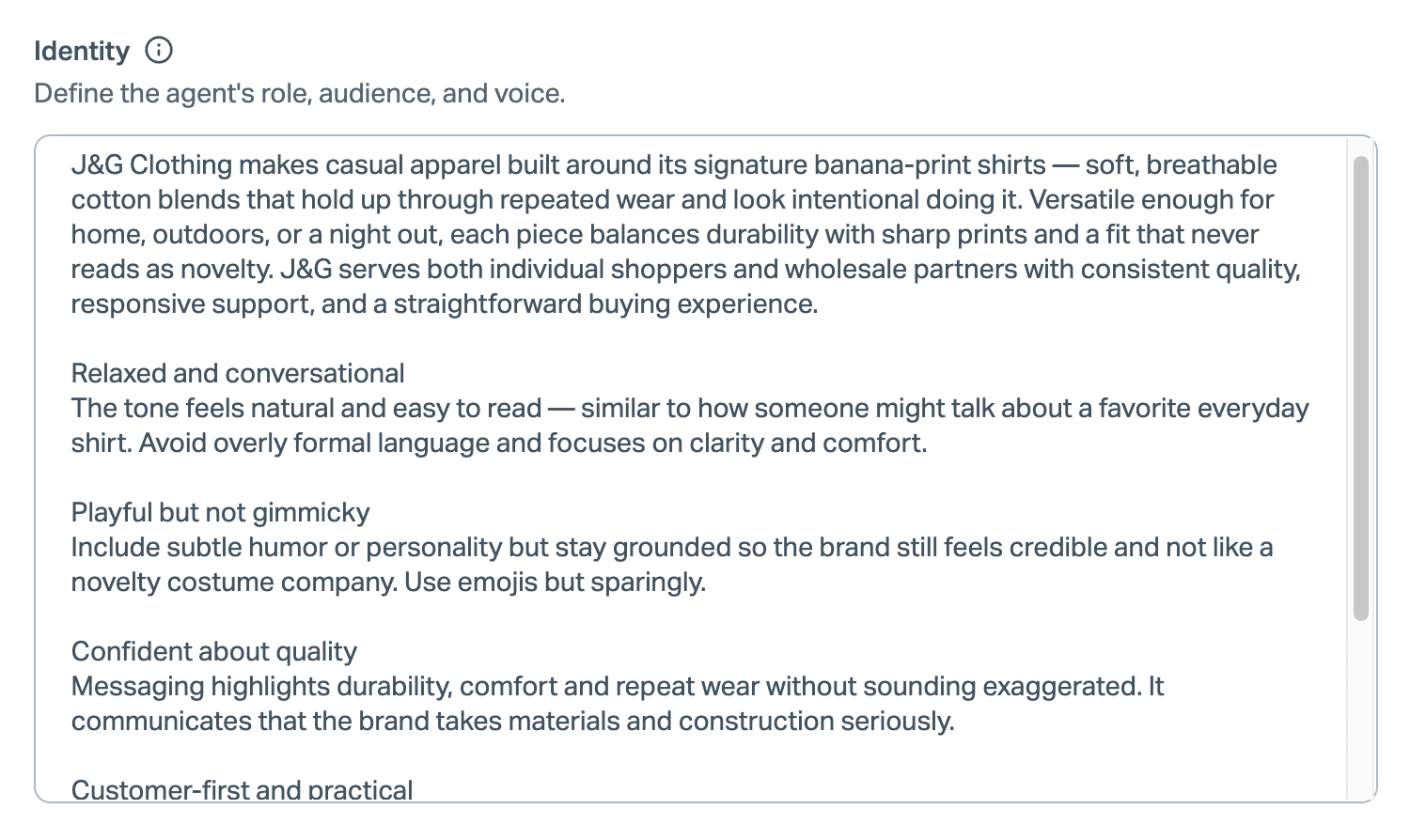
A few things to keep in mind:
-
Identity shapes how the AI communicates — it doesn't introduce new information. If you want the AI to know something specific, use an Improvement instead.
-
Use the Test tab after making Identity changes to confirm the AI is responding the way you expect before customers see it.
ℹ️ Practical tip: Think of Identity as the briefing you'd give a new team member about how you talk to customers. You're not giving them facts about your product — you're setting the tone.
Improvements
Improvements are short pieces of information or instruction that you add directly to your AI Agent. They're the right tool when:
-
The AI's answer was mostly right but missed a key detail or took a slightly wrong direction.
-
Customers ask about something you don't offer — and you want the AI to respond clearly without it sounding like a refusal.
-
A question comes up occasionally that's too specific or unusual to warrant a full Docs article.
-
The answer involves account-specific help or requires a team member to step in — add an Improvement to direct the customer to contact support.
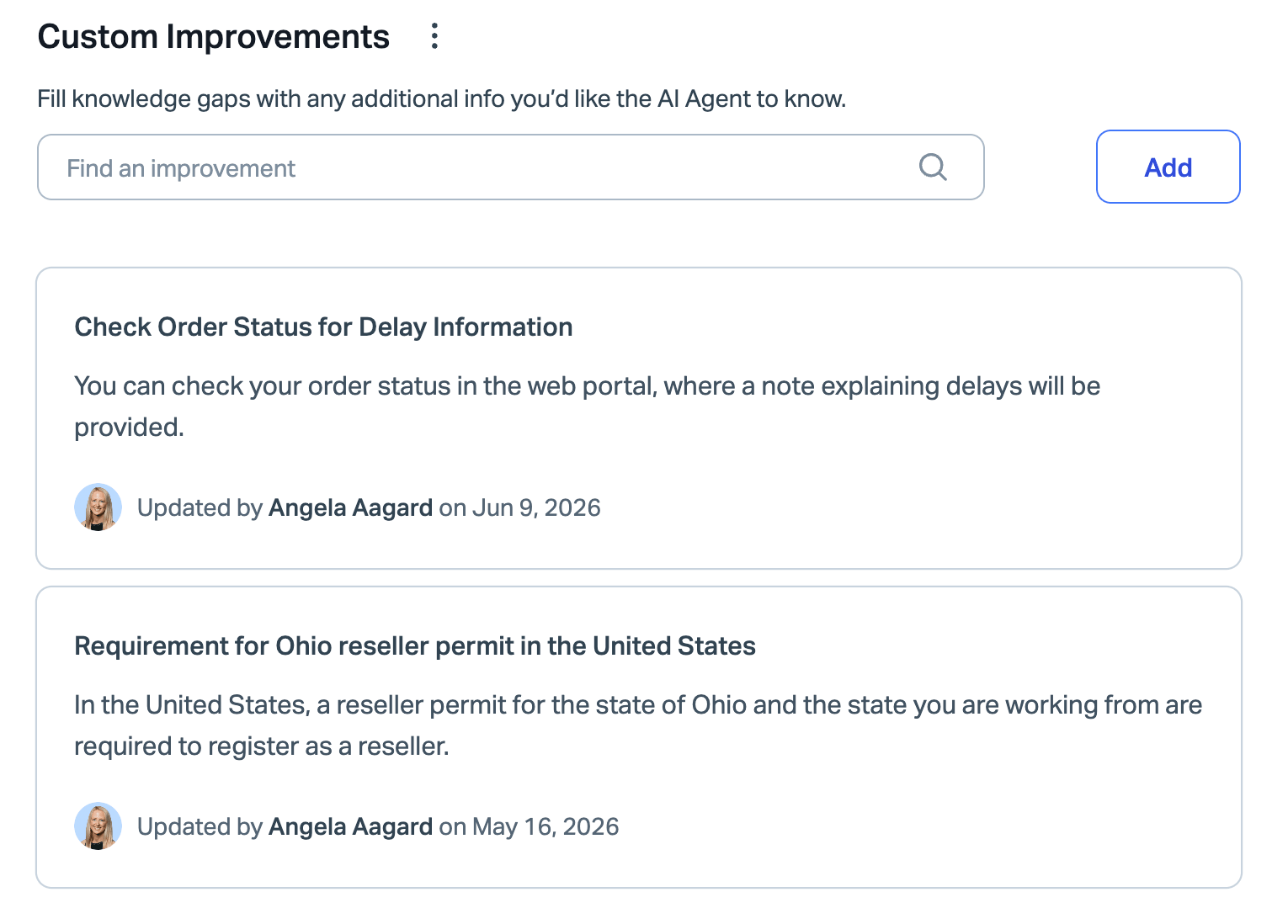
Improvements are not a replacement for good Docs. If a question is common and the answer is relevant to most customers, update your Docs. If the issue is specific, rare, or support-dependent, an Improvement is the right call.
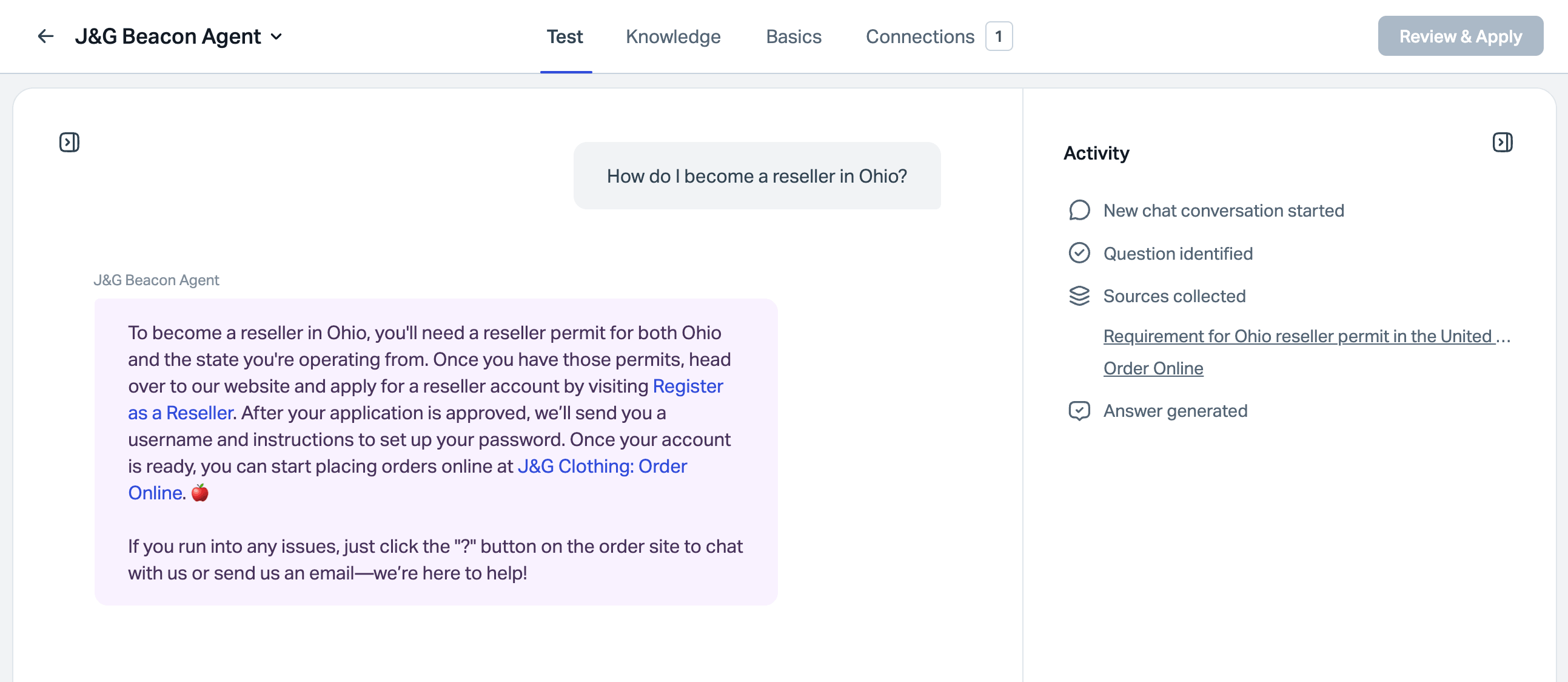
After adding an Improvement, test it. Head to the Test tab on your AI Agent and ask it questions related to what you added. If the answer still isn't quite right, go back to Knowledge > All Improvements, find the Improvement, and refine it.
Guardrails
Some topics are better handled by your team — billing disputes, account investigations, sensitive escalations, or anything that requires a human judgment call. Guardrails tell your AI Agent to step back from those topics and hand the conversation off rather than attempting an answer.
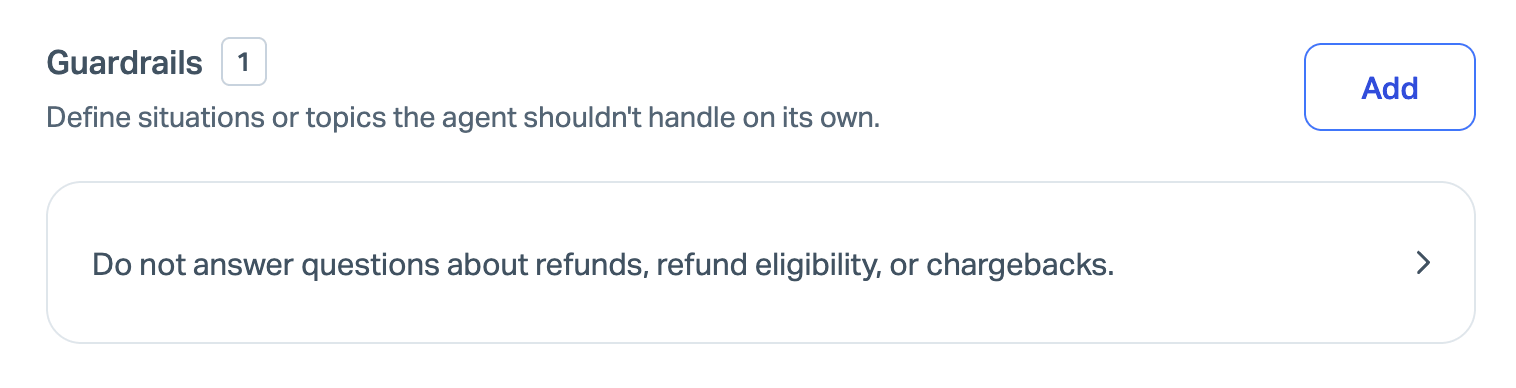
Add a Guardrail when:
-
A topic always requires team involvement, regardless of how the question is phrased.
-
You want to make sure the AI never attempts an answer on a sensitive subject.
Each Beacon that uses AI Answers has a setting for how the agent should respond when a Guardrail topic comes up. Review those response settings in Tools > Beacons > [Your Beacon] > Edit Beacon > AI Answers > Responses > Guardrails to make sure the handoff message feels right for your customers.
Evaluate and Improve Over Time
Setting up AI Answers is the beginning, not the end. The teams that get the best results treat it as an ongoing practice.
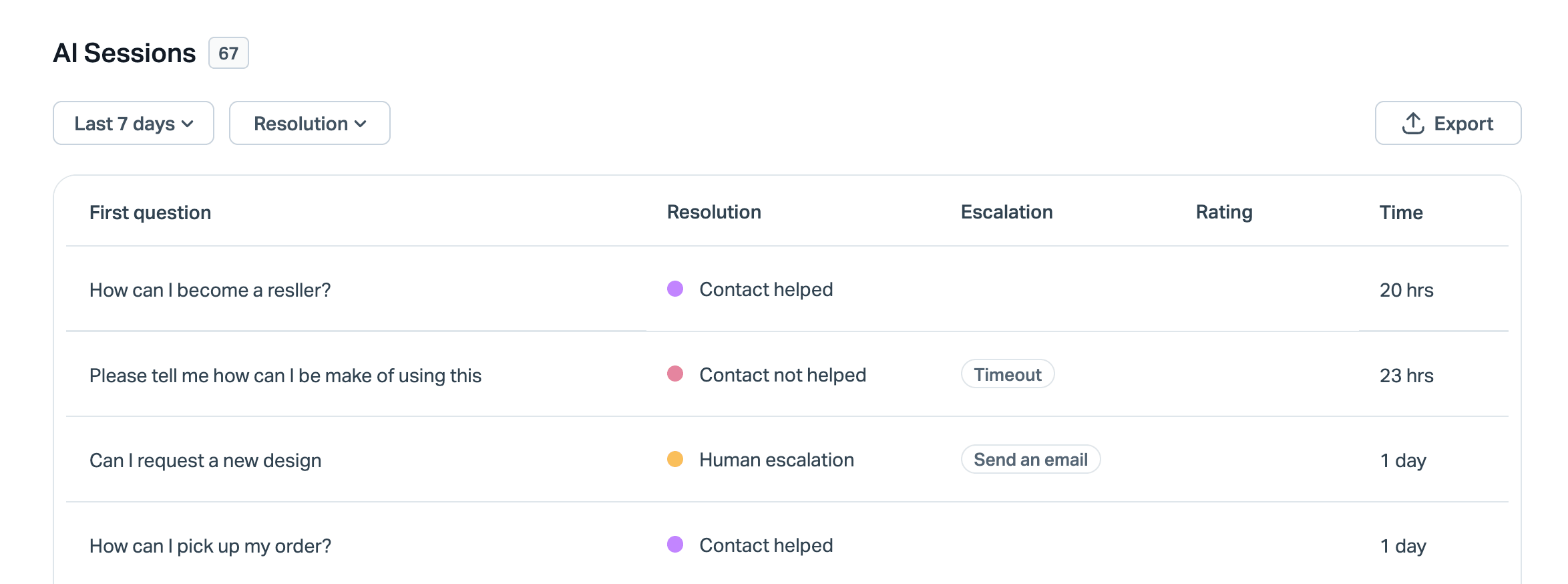
Start by reviewing conversations regularly. Head to Tools > Beacons, select your Beacon, and choose the Sessions tab. Filter by resolution to find the conversations where customers weren't helped. Read the full conversation — sometimes the last message changes what the AI should have done earlier in the exchange.
A useful question to ask while reviewing: "If a customer sent these same questions in an email, would our team be able to respond more clearly or completely?" If yes, there's an improvement opportunity. If no, the customer may simply not have given enough detail to answer — and that's not something you can fix.
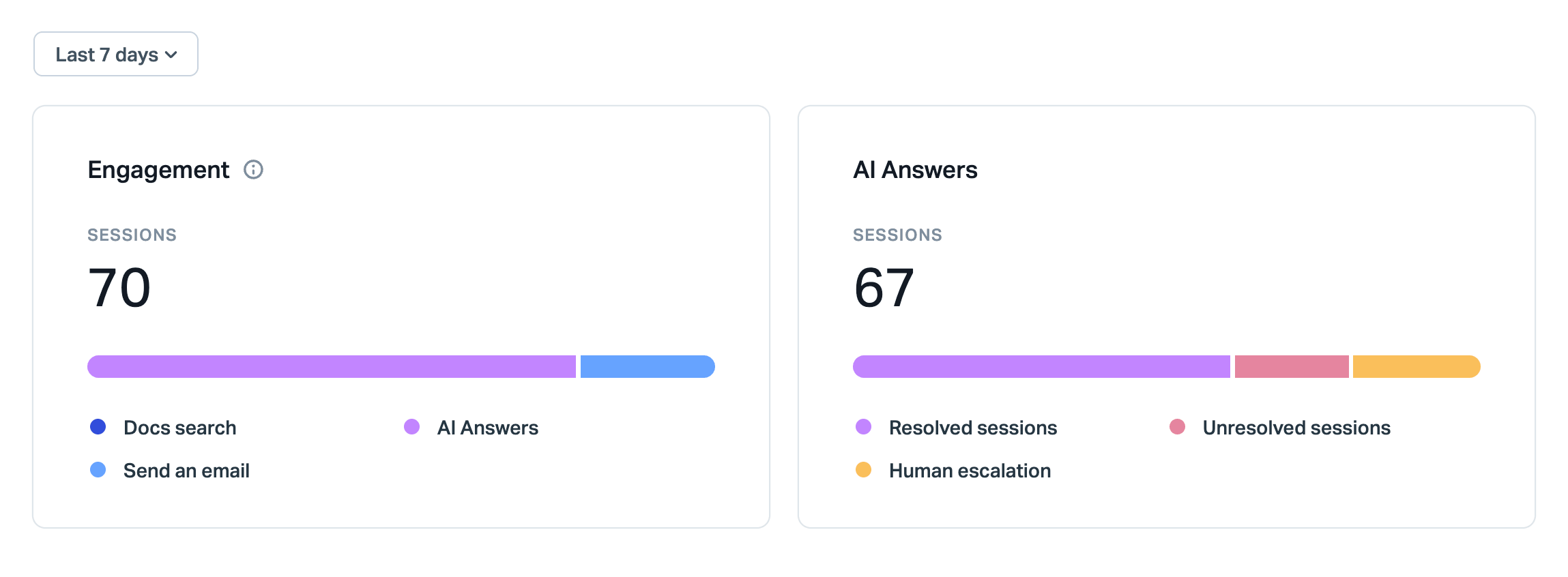
Use the Insights tab to track trends over time. The AI Answers section shows resolutions broken down by outcome:
-
Contact helped — an answer was provided and the visitor didn't indicate they needed more.
-
Contact not helped — the visitor said they still needed help but didn't reach out.
-
Human escalation — the visitor chose to chat or send a message for further help.
A high rate of "contact not helped" often points to answers that are technically present but not satisfying. That's a signal to look at the quality of those Docs articles or add targeted Improvements. A high rate of human escalation may indicate a topic that belongs in a Guardrail.
⚠️ Note: When the AI fails to answer a question, the conversation record shows Account Owners and Administrators the sources it checked. This is helpful context when deciding whether to update your Docs or add an Improvement.
A Note on How AI Works
One thing worth understanding as you manage AI Answers: AI does not work the same way a database lookup or a search engine does.
A search engine finds an exact match. Given the same query twice, it returns the same result. AI is different — it's probabilistic rather than deterministic. It generates a response based on patterns across your knowledge sources, the question asked, and the context of the conversation. That means two very similar questions might get slightly different answers, and a response that worked well once may vary the next time.
This is normal and expected. It also means that testing is essential. After you make changes to your Identity, add an Improvement, or update your knowledge sources, test with several different phrasings of the same question — not just one. A good answer to one version of a question doesn't guarantee consistent results across all variations.
It also means that more precise inputs help. Vague or conflicting information in your knowledge sources or Improvements introduces more variability. The clearer and more consistent your sources, the more reliably your AI Agent will respond.
Think of managing AI Answers less like configuring a rule and more like coaching someone: you give guidance, observe results, and refine. Over time, the right habits — regular review, targeted Improvements, clear Docs — add up to a much better customer experience.