AI Agents in Help Scout
AI Agents help keep AI Answers accurate and trustworthy by managing the knowledge and improvements. This article explains what an agent is and shows how to manage AI Answers Improvements and Additional Sources using AI Agents.
In this article
| Permissions & Plans Access | |
|---|---|
| Plans With Access | All Plans |
| User Roles and Permissions | All Users can access Agents |
What is an AI Agent?
An AI Agent is the central place to configure AI in Help Scout: knowledge, behavior, and connections. Agents do not act independently and operate only within the permissions you set.
AI Agents allow you to set up your AI preferences once and then use that same configuration across multiple Beacons.
Create an AI Agent
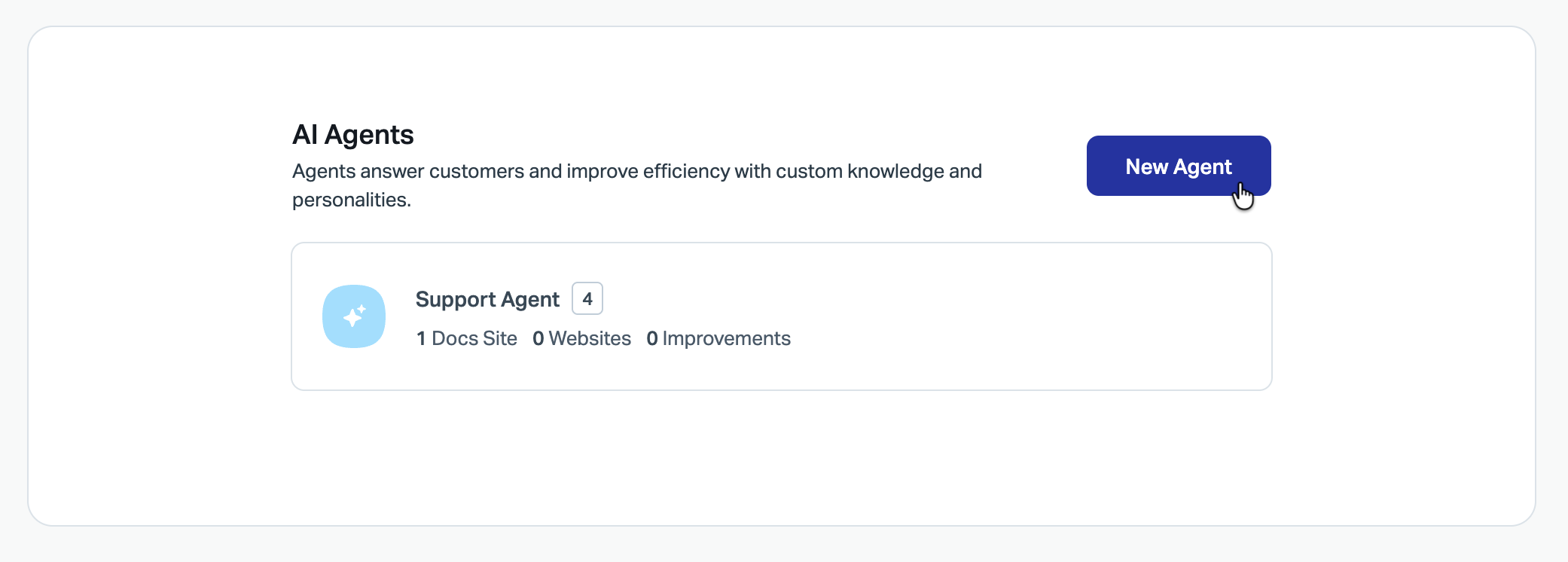
You will automatically have an AI Agent created with your account, but you can create additional agents when necessary.
-
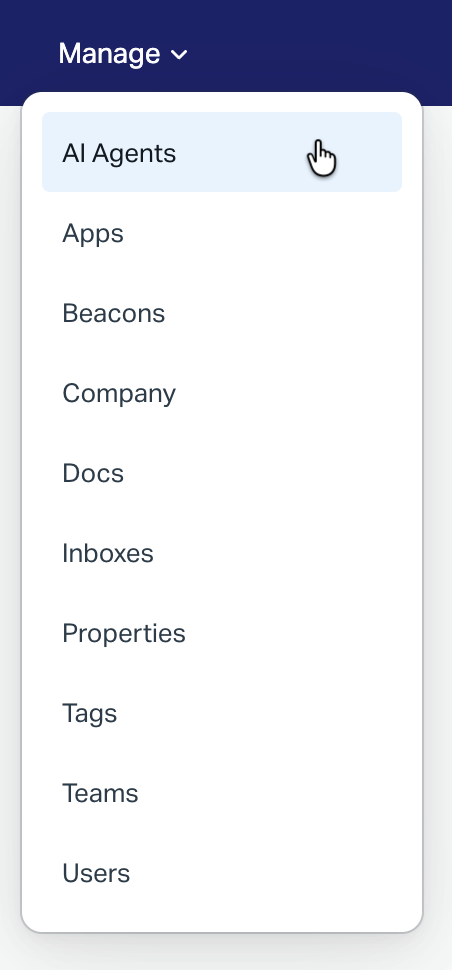
Head to Tools > AI Agents.
-
Click New Agent.
-
Step through the creation wizard. All of these settings can be edited later.
Add Knowledge Sources
-
Add a website. Knowledge bases, marketing websites, FAQ pages, PDFs, Word and Excel documents — just about any publicly available URL with information that you want your AI Agent to pull from can be added here. The initial sync of a site can take some time, depending on the size of the site. You can manually resync the sources later if there are changes made.
-
Add any improvements you may know already. These are nuggets of information you want the AI Agent to use, but aren't published on any of your other sources.
-
Add a Docs site. You'll be able to select from any Help Scout Docs site that is on your account.
Name, Color, and Identity
-
Set the name for your AI Agent and choose the color that will represent it throughout Help Scout.
-
Set the definitions for the tone and style that your AI Agent will use in writing. Add your brand's voice and tone, give the agent explicit instructions on how to — or how not to — reply in general, and tailor it for your audience.
Notes on use: The Identity settings cannot be used to introduce new information to the AI. Use improvements for that.
Manage AI Agents
Head to Tools > AI Agents and select the agent you wish to change.
Knowledge
Knowledge is where you manage all of the knowledge sources available to the AI Agent. You can add external websites including knowledge bases and publicly available documents, a Help Scout Docs site from your account, and/or Improvements for small adjustments.

You can configure the knowledge to use data from any publicly accessible website as a source. You can add URLs websites, PDFs, Word documents, and spreadsheets — if you have a URL for information, you can likely add it as a knowledge source for your AI Agents.
Add a Website
You'll be given the option to sync the just the page you enter, the entire site, or customize your selection. Content of any PDFs, Word, or Excel documents in the space you add can also be synced, or link to those directly.
NOTE: Google Docs can be added as well, but they will need to be added 1-by-1 as single entries in order for those to sync. Make sure that the Google Doc or Sheet is shared to "anyone with the link," and then just add the link as a website!
If there are changes made to your website sources — such as a pricing change, new stock, changes in procedures, etc. — you'll want to come back to these settings to resync the source manually so that the AI Agent is updated with that new information.

Note: This sync can take several minutes if it's syncing a large site! Be sure to click Review & Apply in the top right corner, then Apply Changes to save your new source, and it will be available when the sync is finished. We recommend targeting the pages in your sources that contain the best information rather than adding an entire website for the best accuracy.
Add an Improvement
Improvements allow you to add smaller bits of knowledge or nuance to your published Docs and sources. Use them to introduce new information or clarifications to your AI Agent.

Generate and add your improvement and then hover over the card with your mouse to find the options to Copy to Agent or Delete the improvement.

Basics
Define the AI agent and its guardrails.
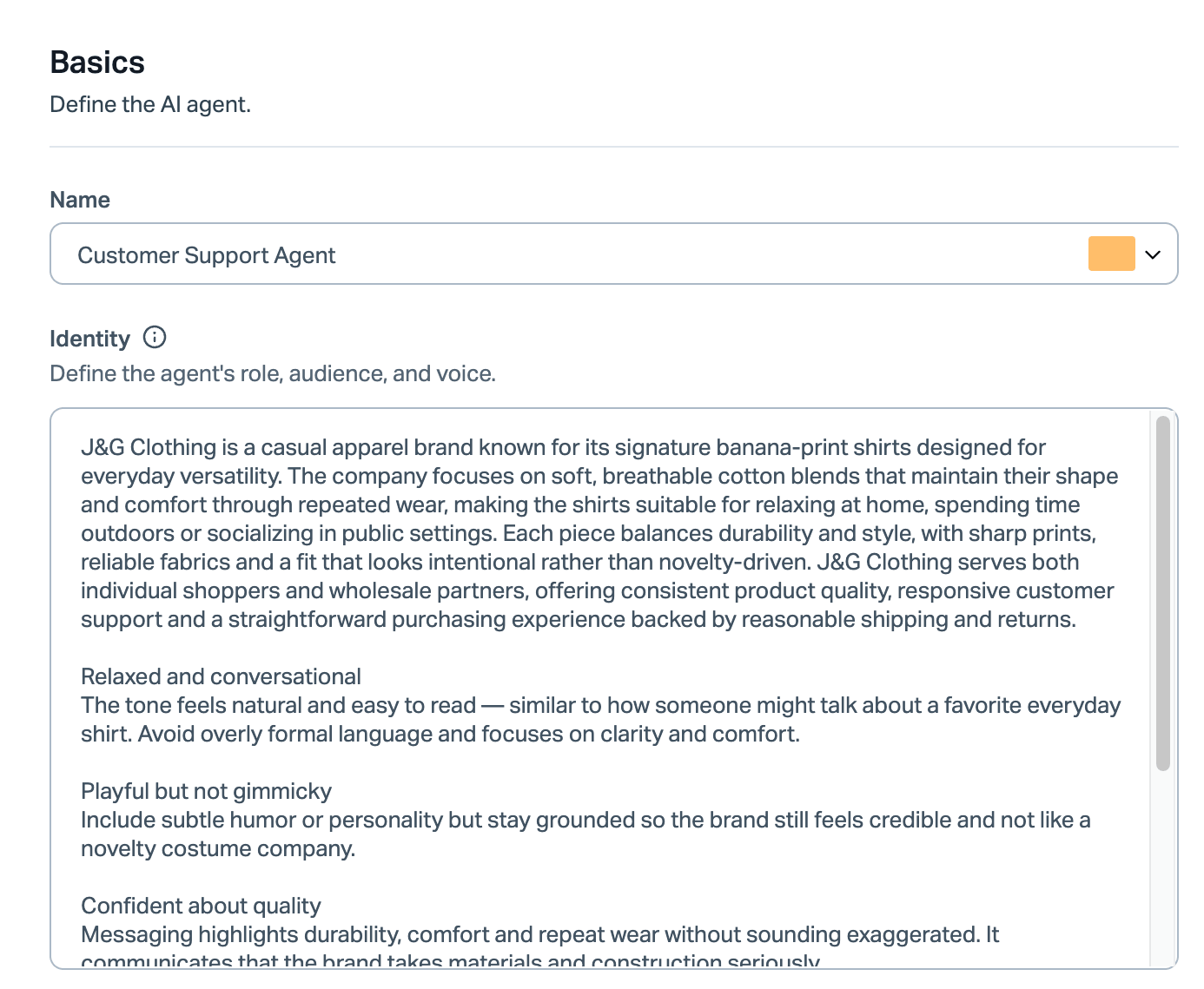
Name
Rename the agent or change the color of the icon.
Identity
Change the identity that you set up when creating the agent. Give the agent information about your brand and customers, and give it direction on how to respond.
Notes on use: The Identity settings cannot be used to introduce new information to the AI. Use improvements for that. We recommend using Preview to test changes to identity after you've made them.
NEW Guardrails
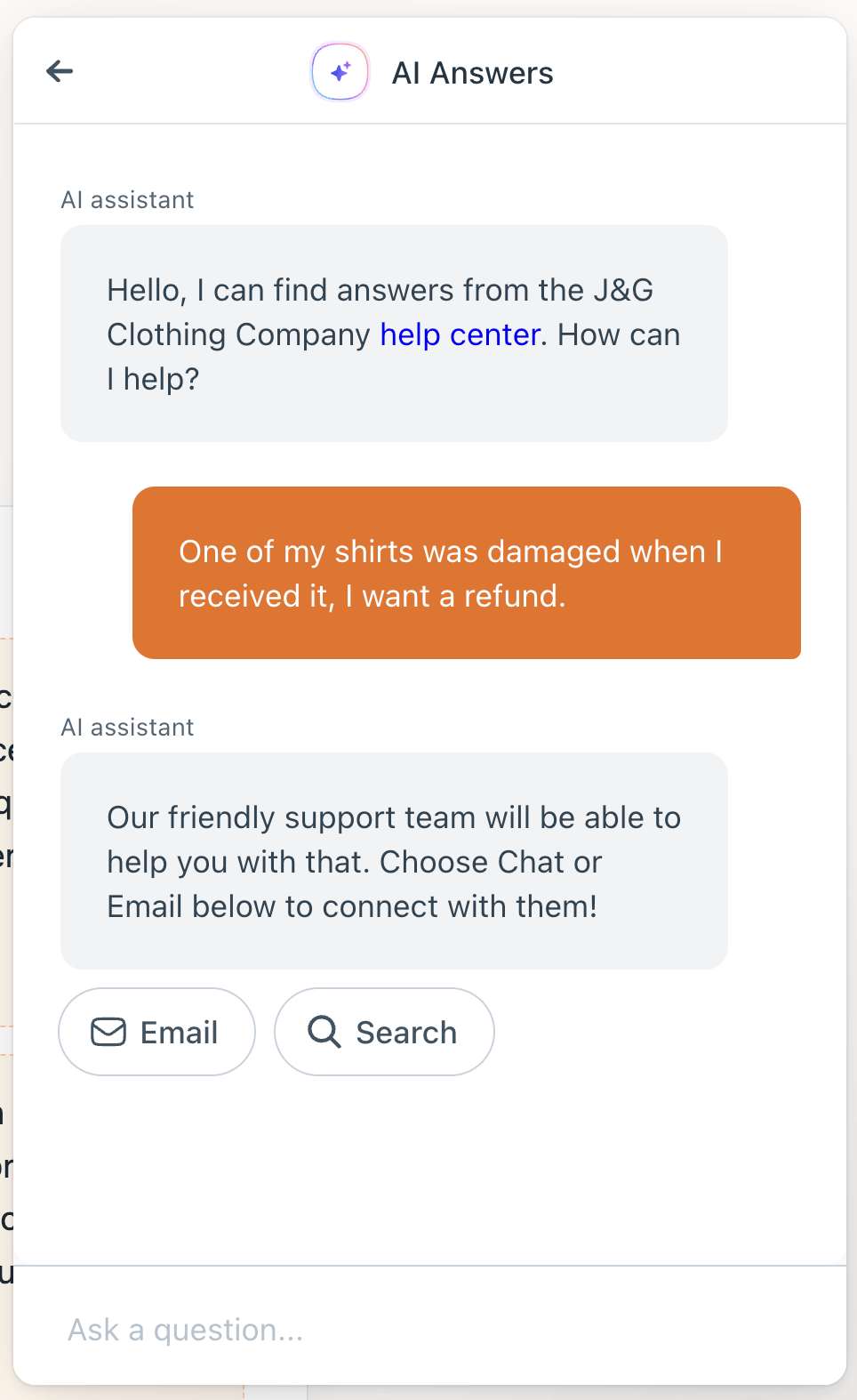
Some conversations are better handled by your team. If you don’t want your AI Agent to engage with certain topics, use guardrails to set clear boundaries and have the agent escalate the conversation to your team right away.
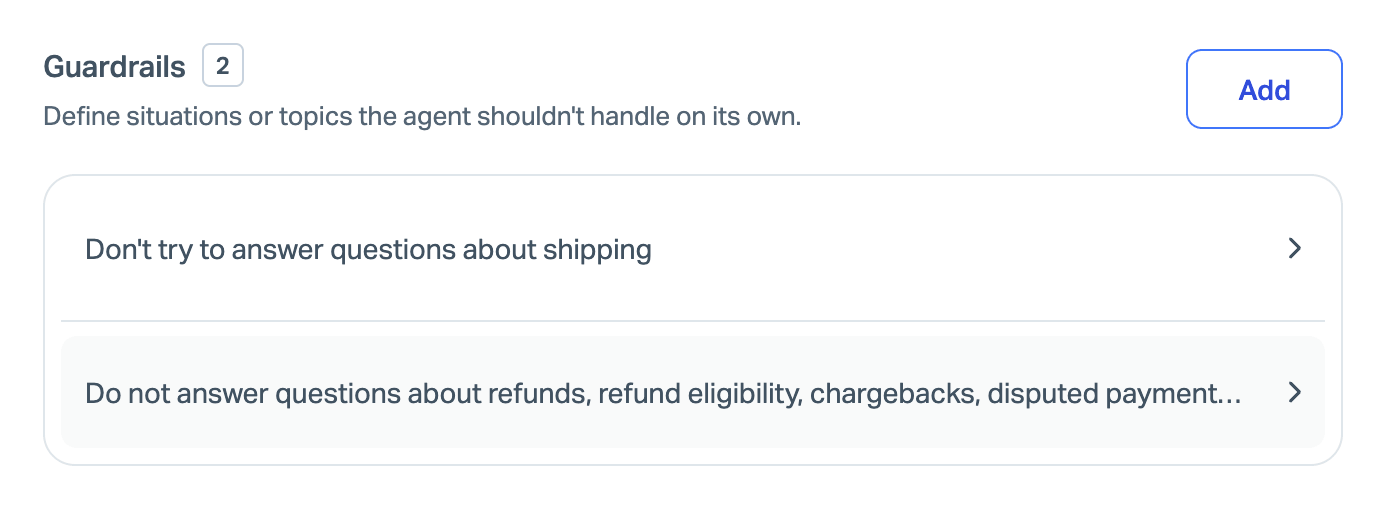
Each Beacon that uses AI Answers and the AI Agent includes a setting where you can define how the agent responds when a customer brings up a topic you’ve added to a guardrail.
Check out Manage AI Answers: Settings: Responses for more help on that setting.
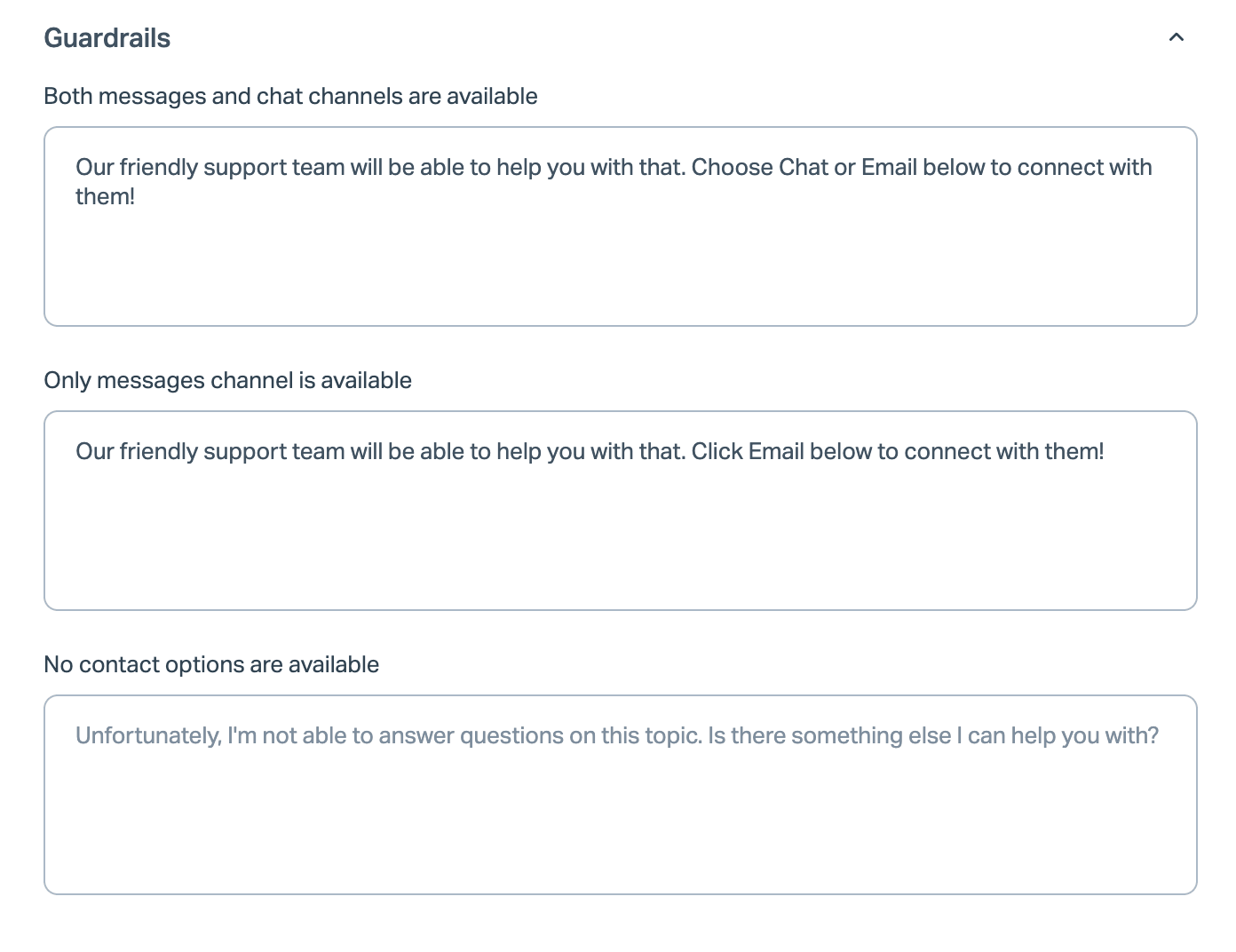
The agent will use the response that you've set whenever any topic listed as a guardrail is brought up.
Test
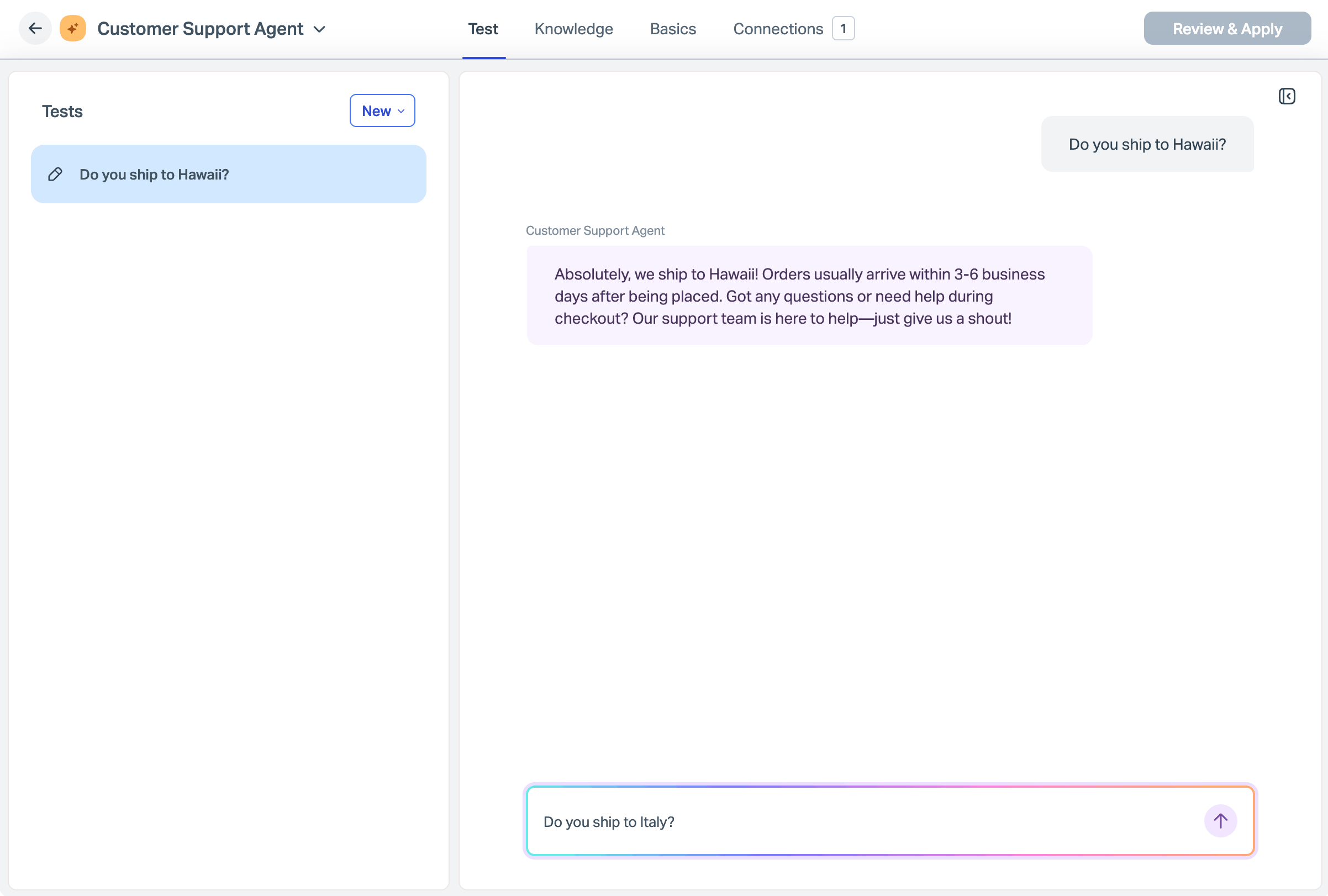
Chat with the AI Agent. Simulate conversations that your customers may have with the agent, and submit Improvements to be used in real AI Answers conversations.
Conversations with AI Answers in the Test tab do not count toward your AI Answers resolutions for billing.
Connections
Shows where AI is being used throughout your account.

Check out the Help Scout AI Transparency Hub for questions about our AI policies.