Advanced Privacy Controls
Advanced Privacy Controls give you more control over how sensitive customer data is handled in Help Scout. The feature automatically masks personally identifiable information (PII) in conversations and allows you to control who can reveal it. Admins can also define how long sensitive data and attachments are retained before being permanently removed.
Note: Advanced Privacy Controls is currently in early access. If you're interested in using this feature, reach out to our support team to learn more about availability.
In this article
How It Works
When Advanced Privacy is enabled, new incoming conversations are automatically scanned for sensitive data using Amazon Comprehend, a machine learning–based natural language processing service.
If sensitive data is detected, it is immediately masked. A secure copy of the original information is retained temporarily. Once your configured retention period expires, the original data is permanently deleted, leaving only the masked version in the conversation.
Masking applies only to new conversations received after Advanced Privacy is enabled. Existing conversations are not automatically updated.
What Types of Data Are Masked?
We currently detect and mask common PII data such as:
-
Financial Data: Credit/debit card numbers, bank account numbers, bank routing numbers, international bank account numbers
-
Government IDs: Social Security Numbers (SSN), driver's license numbers
-
Personal Information: Email addresses, phone numbers, physical addresses
-
Security Information: PIN numbers
Attachments are not restricted by the masking system. All team members can view attachments regardless of the View masked data permission. Attachments will be permanently deleted according to your configured retention period.
You can find the full list of data types that are supported here.
Configure Advanced Privacy Settings
Navigate to Settings (gear icon) > Company > Advanced Privacy and toggle on Enable data masking.
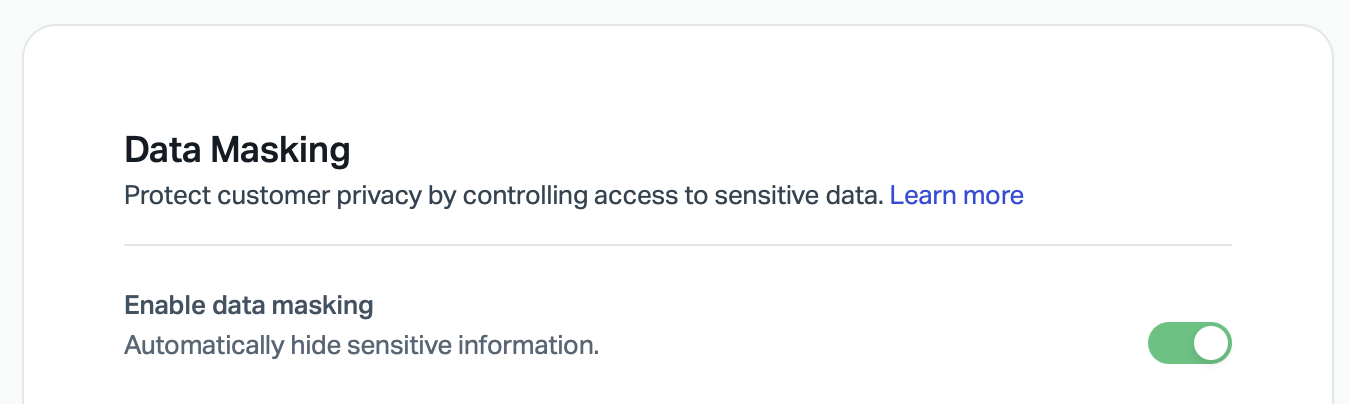
Set your Retention Period to specify how long original data remains viewable before permanent deletion. This applies to identified PII and attachments.

Under Masked Data, customize how common data types should be masked.
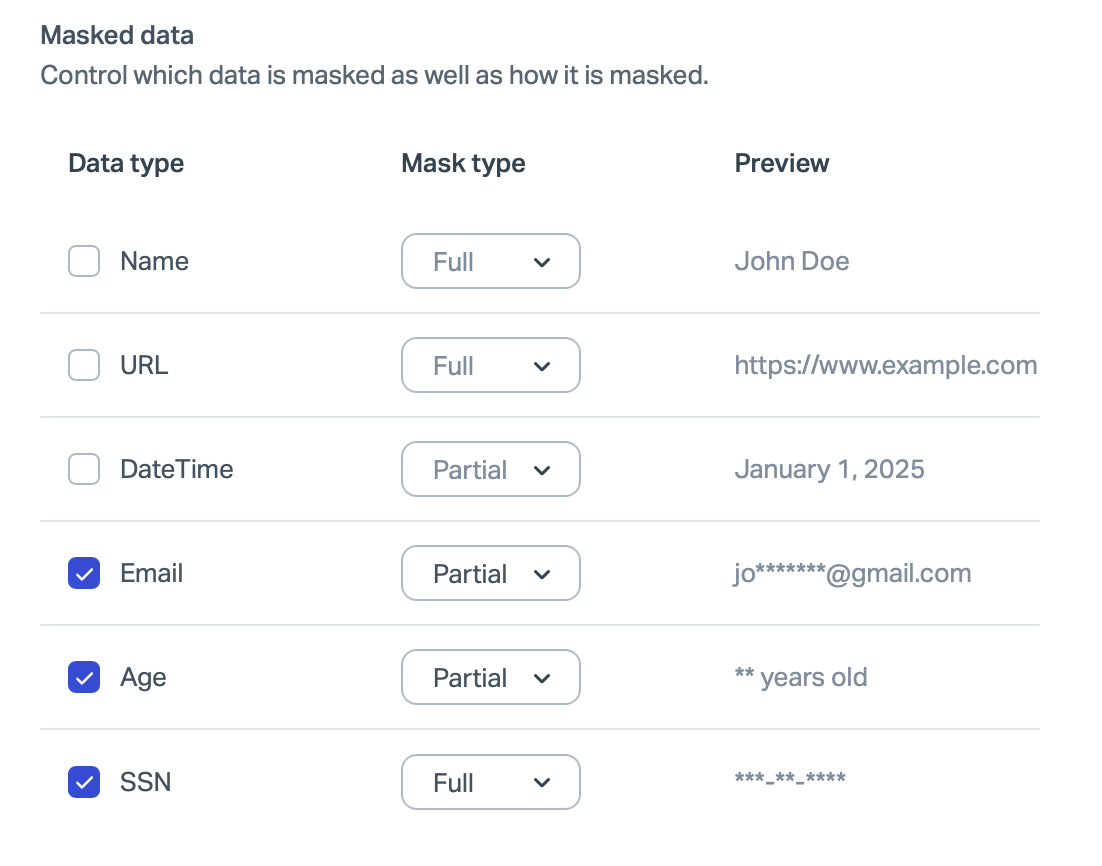
Click the Save button at the bottom of the page. You're all done when you see the green confirmation message!

View Masked Content
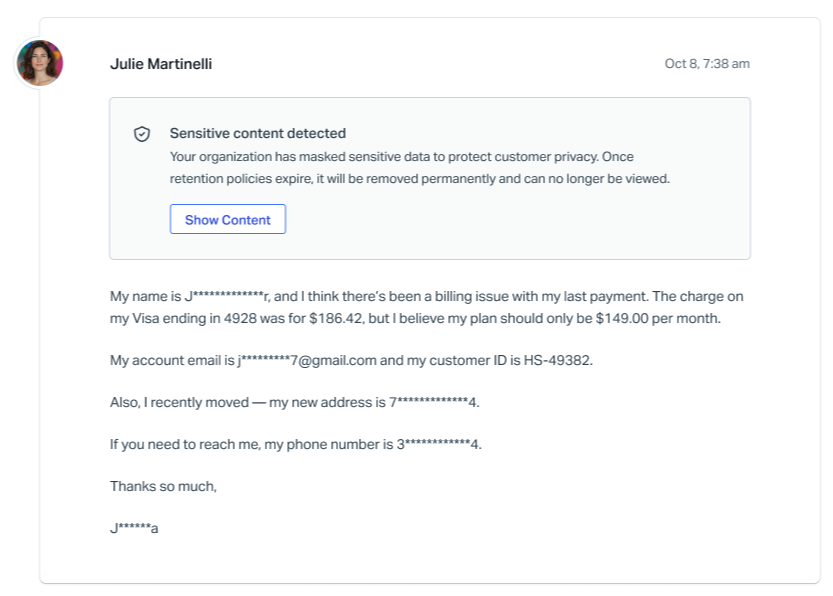
Sensitive values are masked by default for all users.
By default, account owners and admins have permission to view masked data and will see a Show Content option that when clicked, reveals the original, unmasked information.
Users without permission
Team members without the View masked data permission will only see the redacted information with no option to show the sensitive content.
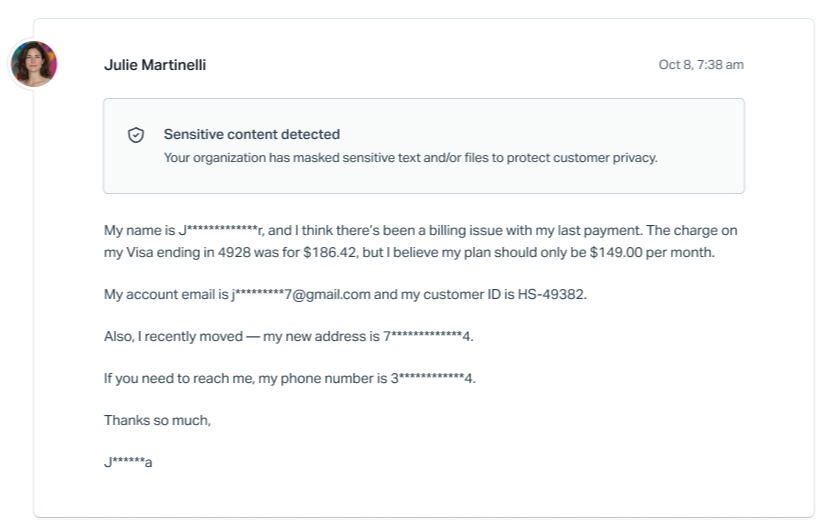
The View masked data permission can be granted to the user role or specific users using custom permissions.
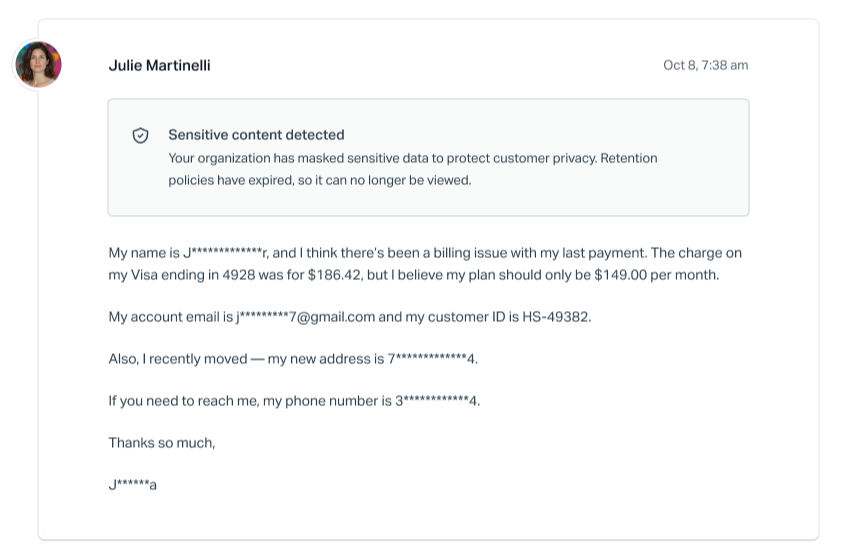
After the retention period expires
Once the retention period has passed, all users, regardless of permissions, can no longer view the original sensitive data. The masked version becomes permanent.